
An interesting point from @GemaH, for most of my 32-bit console cores (PSX, PSP, PS2, Dreamcast), I use a configuration override file with a single line: rewind_enable = “false”, which essentially disables rewind. Now the PCEE2 core has the same file, and the setting under Settings -> Cores -> Bypass Core Info Save States Features is enabled again, so performance no longer drops.
Great and helpful tip, @GemaH!
1 Like
I’d like to tell you about another test I really liked.
You’re probably familiar with the game “Front Mission 4” (I personally love the Front Mission series; these are games you can replay over and over again, practicing tactics and strategy while experimenting with different combinations of Wanzers and their parts). According to the PCSX2 Wiki, this game has two issues: Shadow Artifacts (Cutscene characters and Wanzers have weird block-like shadows.) and Upscaling Artifacts (Dialog Boxes may generate extra horizontal lines, making text hard to read.),

and while the first issue was resolved by adding a forced “Preload Frame Data” setting to the general patch database GameIndex.yaml (located in the “resources” folder), the second is fixed exclusively in the graphics settings via texture offset in the game’s properties within the standalone PCSX2 emulator.

However, the LRPS2 core does not have such texture offset settings (though, interestingly, when selecting the “paraLLEl-GS” renderer in it, no artifacts are observed in dialog boxes), and there is simply no way to implement this fix. One area where the PCEE2 core already stands out from LRPS2 is that the PCEE2 core allows you to transfer pre-made game settings files from standalone PCSX2 to the corresponding folder within RetroArch at the path \system\pcsx2\gamesettings\; in my case, this was the file SLUS-20888_7ACF7E03.ini, which contains the following texture offset settings:
UserHacks_TCOffsetX = 500
UserHacks_TCOffsetY = 500
And lo and behold, now PCEE2 displays a perfectly correct image!

I really liked this feature that lets you transfer additional settings.
1 Like
Yeah, my mistake - I initially wrote about the 32-bit PSX and PSP consoles, then remembered that I’d added a similar configuration file for the PS2 and Dreamcast, so I included them too, forgetting that they’re already 128-bit.
That’s awesome.
Btw, Parallel GS is a unique renderer that only exist in LRPS2 and not even the standalone. It’s a great plugin and great concept, basically it’s like using the software plugin (which is more accurate than any hardware renderer) but instead of the CPU, it uses the GPU for better performance, like the Parallel plugin on N64 emulators.
So in many cases, the Parallel GS plugin will have many issues fixed by default. But may also have it’s own unique issues because it’s still new.
2 Likes
Small tip if -like me, you’re planning on using both LRPS2 and PCEE2; you may want to use different system folders for both cores.
By default, both cores uses ra_folder/system/pcsx2/. So to avoid any potential conflict (given that the PCEE2 core seem to need extra things from a standalone PCSX2 ‘resources’ folder than what LRPS2 need) you can do this:
- Create (if there isn’t one already) a cfg file in the PCEE2 folder called ‘PCEE2.cfg’
- Create a new folder in the system directory. Call it something like PCEE2sys.
- Copy the old ‘pcsx2’ folder that works with PCEE2 into 'system\PCEE2sys
- Add this line to the PCEE2.cfg file:
system_directory = “C:\username\RA\system\pcee2sys”
basically add the absolute path after system_directory = (The easiest way to do this is to navigate to the PCEE2sys folder you’ve created and click on the address bar then copy the entire path then paste that for the added line in the cfg (don’t forget the " ")
Just tested and this works. Now, this might be overkill and too overly cautious and not necessary. But to avoid any possible risk of conflicts between the cores given that they share the same system\pcsx2 folder otherwise… well, that’s what you can do (and yes, be aware that doing it this way, things like saves won’t be shared between the cores).
Also tested SuperSNES9x. Works beautifully. Probably the best way to play SGB content now imo.
If the core doesn’t see the SGB1 bios that’s because it expects the filename to be SGB.sfc instead of SGB1.sfc so just copy SGB1.sfc then rename the copy.
2 Likes
Fixed the old redream core, from


loading properly now, at least .cdi and .gdi files, any interest? Isn’t it still GPL as it was when source was available? To be honest it looks a bit unstable, sometimes crashing here and there.
1 Like
Added chd support to it too heh
Maybe this core is useful for some low power Linux handhelds i guess
Running from chd

2 Likes
Added a bunch of options that work on the fly, changing resolution to half and sh4 speed half, and some frame skip can boost performance to like 600%. Also up to 4x resolution possible on the fly

Changes:
- Fixed broken compilation
- Fixed bios not being detected at start thus crashing(should be named boot.bin and flash.bin at “system/”)
- Added chd support
- Added options for Resolution, SH4 speed, Region, Frameskip, Cable etc
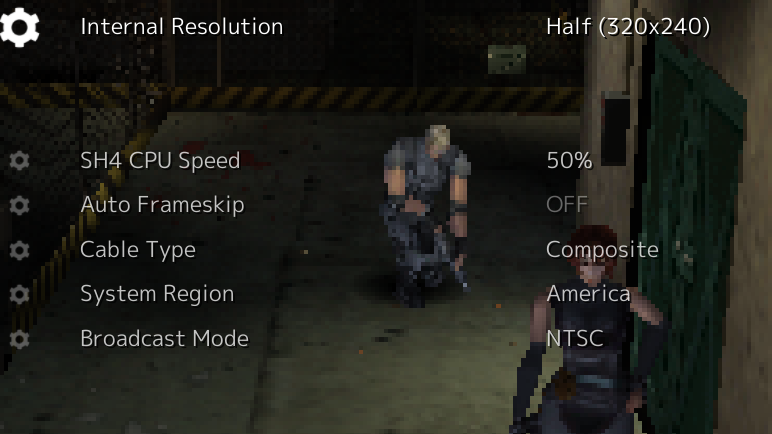


Looks good. How is the compatibility/accuracy compared to the stsndalone?
I would say around 75-80% of chd i tried run well. Some don’t like Sega Rally 2, homebrew discs, and you have to change Region to load properly if Europe/USA etc. Some rare crashes if already playing and loading a new chd. Some rare, mostly minor, graphics glitches in some occasions.
is there any link for a precompiled dll on the Github page or do I have to build it? Because download links and build instructions redirect to the redream site
I build it on linux, perhaps someone with Windows can clone and build it
Linux pre-build is here, core (.so) goes to retroarch/cores/ and .info goes to retroarch/info/
2 Likes
Quick update on pcee2: the core is still being actively developed by WizzardSK. Version 2.7 recently got released. You can grab it here.
The core is more of a direct port/libretro-ization of present pcsx2 than the lrps2 core which probably drifted further away from it at this point in time (lrps2 is still an amazing core, mind you). Basically, can’t hurt to have two great PS2 cores.
Don’t forget to check the Setup section for important instructions.
edit: Apparently, since version 2.7, the resources folder from standalone pcsx2 is no longer required (it would crash at start if it wasn’t present before). So that should make things even easier for 1st time users.
2 Likes
Do you have to get it from the github link? Isn’t pcee2 already in the buildbot?
1 Like
Ah, you’re right, didn’t noticed before. Not sure since when but it’s indeed now available through the buildbot.as well.
Current version of the core is 2.7.523. Current version of standalone is 2.7.524 so basically the same -a couple of days behind at worse.
That’s great, being a few commits behind isn’t an issue, other cores have been months or years behind in the past. You wouldn’t notice a difference anyway unless there is a major commit that changes or fixes a lot. PCSX2 is matured enough for something like this to be unlikely at this point.
The real issue would be the core, being the same as the standalone, having it’s own bugs and regressions. I do remember earlier on some games like Killzone not working (it was fixed eventually). So that means being based on the standalone doesn’t guarantee it’s the same as the standalone.
1 Like
The final release of suyu -a Switch emulator, has been released -final version 0.0.4…along with a new libretro core for Windows and Linux. You can grab them here.
Tbh, I have very little experience with Switch emulation. I’m even less familiar with suyu and I have not actually tested the core (I did try at least loading the core with no content though -it does say 0.0.4).
I haven’t found an info file either so you may have to make one yourself (it’s not particularly difficult; just take an existing one and modify the name so that it matches the core’s, add/edit the extensions it can load etc then make sure to “update core info files” in the online updater).
If anyone wants to try it out though, please let us know your results/impressions.
2 Likes
I wasn’t expecting a Switch core…
Don’t feel like testing it right now myself though, the standalone Switch emulators are complex enough to setup with many dependencies and things to take care of like game updates, DLC, etc so i expect this to be a nightmare really. Gotta clear my mind from other stuff before i tackle this.
2 Likes
Already backed the files up the moment I saw it.  I will test it out later. I have experience with playing on Yuzu for hundred of hours, at least 2 games. Suyu is based on Yuzu. There is another currently supported and developed Switch emulator, Eden, also based on Yuzu. Suyu took Eden as their new base. I can take over my save files and do direct comparisons on different places.
1 Like
so i expect this to be a nightmare really. Gotta clear my mind from other stuff before i tackle this.
Same here. I’d have to first get familiar with the standalone (also available in the same github repo posted above) and Switch emulation in general before I even begin to try the core tbh.
Already backed the files up the moment I saw it.
From what the author said there should be an archive dot org backup somewhere even if anything happens to the archived github repo but yeah, I made a backups of all the stuff there just in case.