New sonkun crt guest advanced hd presets thread

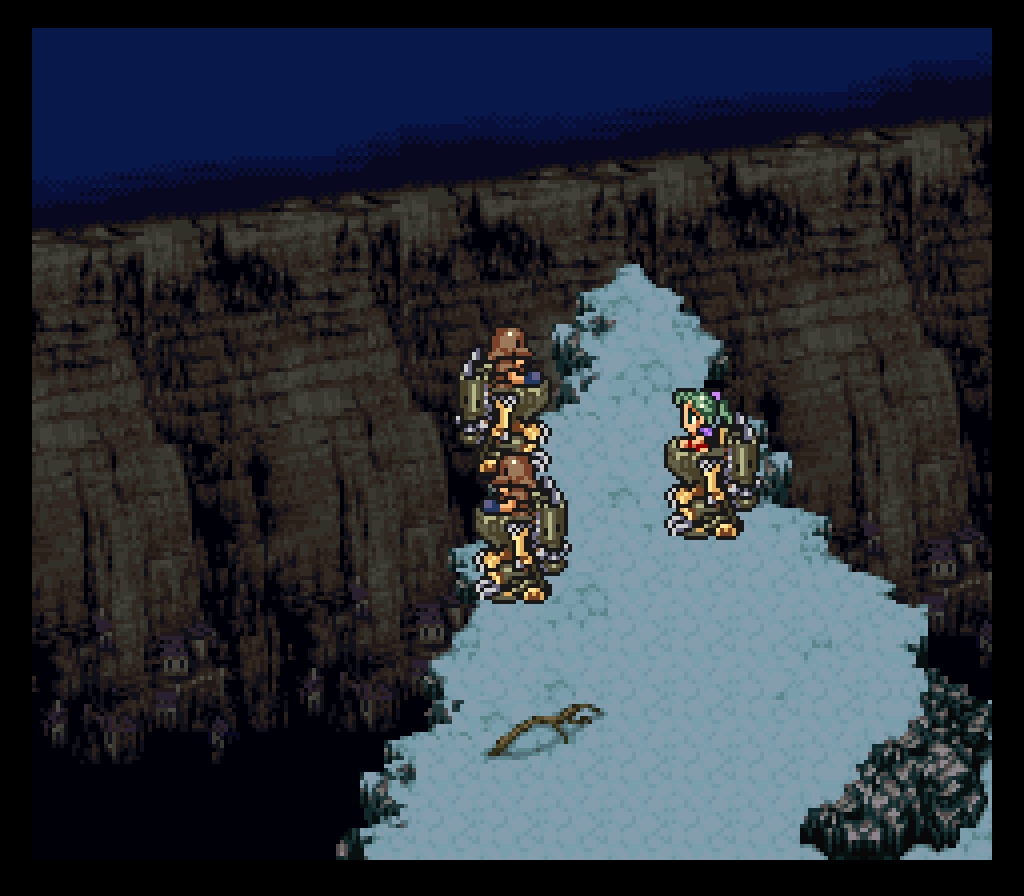
Thanks for the feedback. I’m assuming you mean the mountains are too “reddish”. Loaded the game up real fast and right away I knew which setting was mostly likely causing it, the “red-green tint” setting in grade.

Here it is using the sample pack from above:

Here’s after tweaking that setting and raising it up one value below 10:

I split the image between raw and shader to show it more. Is that what you were talking about?

Edit: Ran another test in a different area and yeah that setting for sure needed to be tweaked. Here’s before and after in the window area with the sky:

No, that’s not it at all. Look at the outlines on the green parts of the mountains.

Here’s a clean image:

Here’s one of your previous presets: Finally, here’s the latest standard stock guest:

Your preset is creating colors out of thin air! That’s what causing my concern.

1 Like

Hmm I think I may know which setting is doing that, possibly the “Mitigate Mask on Edges” setting perhaps?

Here’s with it on:

Off:

You meant that? Also you indirectly helped me as well as I didn’t like how those mountains were looking, too reddish looking so I made it look more how it looks in the raw image. I’ll be putting out a new sample pack with that change as well.

2 Likes

No. Look at where the arrow is pointing. Those almost yellow contours? If you look at the clean or stock guest images above, you’ll see that whole area’s supposed to be one solid green.

1 Like

First, these are beautiful sonkun, thank you. Need help installing your presets.

For regular sonkun presets, I installed them in RetroArch/shaders/shaders_slang/sonkun folder.

The fine details are incredible, but everything, even the warmest presets, look very blue:

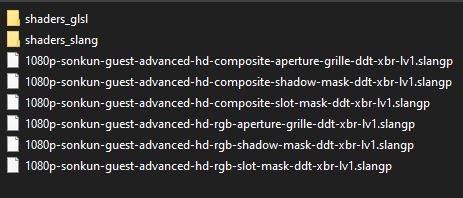
I’d also like to try the 1080p-sonkun-guest-advanced-hd-rgb-shadow-mask-ddt-xbr-lv1 type shaders, installed them in RetroArch/shaders below shaders_glsl and shaders_slang, sonkun1

but they don’t load with “failed to apply shader preset.” If it’s important, the regular guest.r shaders load and look great.

Appreciate any advice.

1 Like

Round 3 of tweaking in the lab since returning, let’s try this new craziness out:

https://www.mediafire.com/file/xfej1f4ro9plpqu/new-sonkun-preset-samples-08-25-2026.zip/file

Unzip then copy and place the individual presets directly into the shaders folder not shaders_slang, you know the drill.

I see what you’re talking about there. I can’t even reproduce that from my end though so I’m not sure what’s causing that on your end. Even the pics I posted above from the same game didn’t have that yellowish line. Try these presets out and see if anything changes perhaps.

More than likely you’re getting errors because the “res switch” shader, which is a different shader than guest.r’s has been moved to a completely new location since I posted my shader preset pack last year. Basically it’s reeeeally outdated and needs to be replaced with a new working one which I’m working on doing now.

I’m currently looking for a new look before I do that though so I’ve been posting up these small sample packs for you guys to try out. You should try them out as well but instead install this guest.r shader update as that’s needed to work with these new samples. Try them out and see how these look to you. Instead of placing the folder in the shaders_slang folder unzip the download above, copy all all the presets inside and paste them in just the “shaders” main folder and load them from there.

2 Likes

Been playing FFV Pixel Remastered and wanted to try it your preset as I did not like the built in one. It is not a perfect port, mainly due to the difference in resolution, but it is not bad!

This is the 4k composite preset.

1 Like

Unfortunately, same as before.

OK, now that is interesting! On my monitor the yellowish line comes through clear as day in each of your screenshots!

1 Like

Wow 4k high resolution pics, that’s interesting. I never really know how my presets will look on anyone’s individual monitors or tvs so seeing pics like this will always amaze me. Well how do you like it lol? Should I keep this look? Get back in the lab and keep tweaking?

I literally have the game loaded right now as I’m typing this, face almost glued to the screen lol and this is on a 65 inch tv yet it’s not showing that on my display, super weird. @guest.r and @Arviel do you guess see that yellow line in that Pic from your end? And if so @guest.r what could possibly causing that?

1 Like

It was mostly a “can i do it?” sort of thing, i was surprised it even came as close as it did. It doesn’t quite match the look of running it in RA with low resolution consoles, which is to be expected. I’ll try to tweak to see if I can get it a bit closer.

This is just a silly side project though so don’t take my feedback on the visual seriously! Your shaders are still my favorite.

1 Like

That should be easy to do. In the parameter settings go down to the “Interlacing options” and put the “Internal Resolution” setting to 1.00, I believe that’s the look you’re trying to get.

Oh no I actually want feedback good or bad lol. I’m putting out these small packs to see if there’s anything I should add, take away, lower, raise etc.

@DukeSkinny Try lowering the “Horizontal bloom/halation sigma” setting and see what happens. I’m just gonna assume it could be some glow related issue until I can get to the bottom of it.

1 Like

Standard:

‘Horizontal bloom/halation sigma’ at minimum: ‘Mitigate Mask on Edges’ at minimum: Both settings at minimum:

Don’t know what’s visible on your end, but both settings seem to “enhance” an artifact that’s already present earlier in the chain. With both settings at minimum, the issue is greatly reduced. Everything is clear on the vertical axis, but there are still yellowish pixels running horizontally.

1 Like

Yes through the images I see everything clearly, I see the most difference when that mitigate setting is lowered or disabled. So I guess it was a combination of both of those settings. Maybe you can go a step further and lower those other glow sigma settings as well, both the horizontal and vertical ones.

For whatever reason those settings help enhance the image from my end especially that mitigate setting, maybe it’s just the way my TV is outputting the image I don’t know.

1 Like

Can’t seem to reproduce on my end. Using your latest. Sadly have no feedback just love your stuff. :smiley:

Google Photos

1 Like

Yo darkstar6, good to see you back around after basically a year.

Guess that can’t be helped.

Understandable lol. Besides that issue above no one has really said much, maybe that means I should just stick with the current look and move forward to getting this new release together. I wonder if there’s been any new kind of de-dithering shaders added into the ecosystem while I’ve been away, something I can use to replace what I’m currently using in my s-video presets…

In any case as you can see the name of the game is “Bright and vivid colors” I want those colors to light up your screens.

And of course get the sharpest composite image I can obtain while blending all those dithering effects:

I’m working lol.

2 Likes

These worked; I’m using 1080p-rgb-slotmask. The small details, colors, and dithering are just great, but the default parameters seem very bright:

2 Likes

Nice. You made sure to also install guest.r’s latest shader update I posted above as well? My presets need his update.

This is how it looks from my end:

Your shot looks a bit brighter indeed especially looking at the woman’s eyes. I can barely see the black outline in her eyes in your shot, almost like it’s smothered or something.

This is the guest.r update.

Also if you wanna be sure, instead of copying files over overwriting existing files delete anything that you need to replace.

1 Like

I did–I deleted the guest folder as well as guest’s individual crt presets and replaced them with those in the update. Maybe some of my other shaders/presets need updating? You mentioned the resswitch shader before.

1 Like

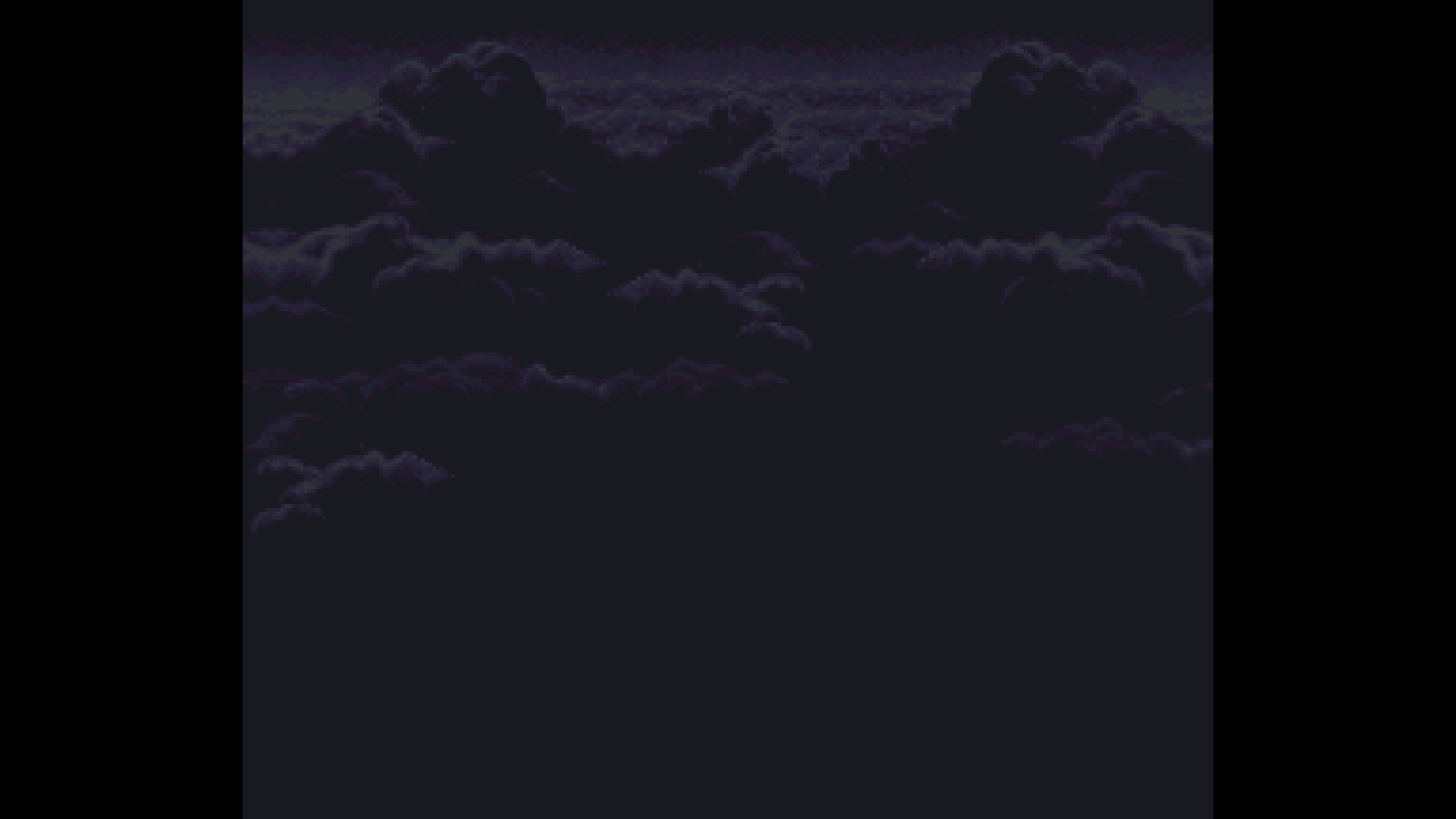
how does the cloud in the prison look now in chrono trigger still blindingly white

1 Like

Shader has greater brightness than usual. Eg in Looney Tunes B-Ball, the Eclipse effects is supposed to make the whole screen dark, yet here you can still see the characters and court

1 Like