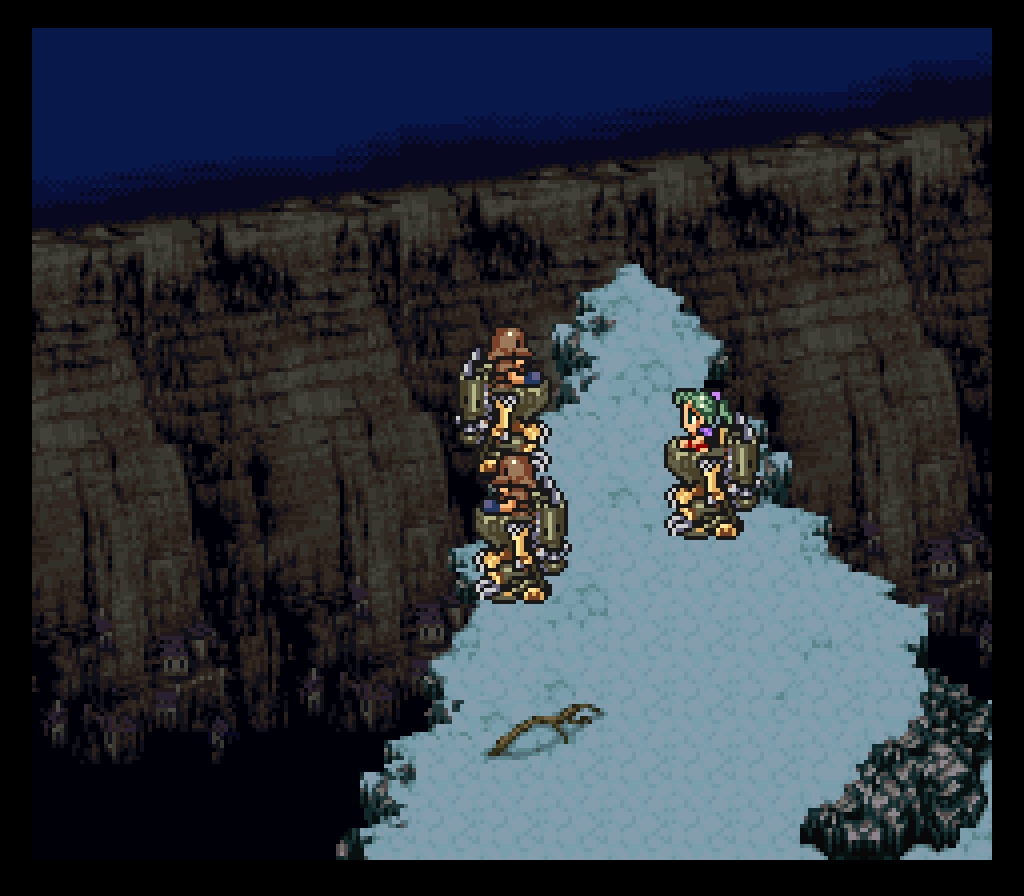
Don’t know what’s visible on your end, but both settings seem to “enhance” an artifact that’s already present earlier in the chain. With both settings at minimum, the issue is greatly reduced. Everything is clear on the vertical axis, but there are still yellowish pixels running horizontally.
Yes through the images I see everything clearly, I see the most difference when that mitigate setting is lowered or disabled. So I guess it was a combination of both of those settings. Maybe you can go a step further and lower those other glow sigma settings as well, both the horizontal and vertical ones.
For whatever reason those settings help enhance the image from my end especially that mitigate setting, maybe it’s just the way my TV is outputting the image I don’t know.
Yo darkstar6, good to see you back around after basically a year.
Guess that can’t be helped.
Understandable lol. Besides that issue above no one has really said much, maybe that means I should just stick with the current look and move forward to getting this new release together. I wonder if there’s been any new kind of de-dithering shaders added into the ecosystem while I’ve been away, something I can use to replace what I’m currently using in my s-video presets…
In any case as you can see the name of the game is “Bright and vivid colors” I want those colors to light up your screens.
Your shot looks a bit brighter indeed especially looking at the woman’s eyes. I can barely see the black outline in her eyes in your shot, almost like it’s smothered or something.
I did–I deleted the guest folder as well as guest’s individual crt presets and replaced them with those in the update. Maybe some of my other shaders/presets need updating? You mentioned the resswitch shader before.
Shader has greater brightness than usual. Eg in Looney Tunes B-Ball, the Eclipse effects is supposed to make the whole screen dark, yet here you can still see the characters and court
Yeah the res switch shader isn’t the issue here, at least not with these samples. I went and downloaded your image and put both of ours up on the big screen so that I could see better, from what I see you’ve done everything right, the main difference I see is the aspect ratio. I’m not sure which core you’re using and how you have your screen settings set but your image is smaller, I also notice some faint vertical lines in the sky as a result of that too. I’m using the snes9x core with a 4:3 aspect ratio with the “crop overscan” setting to 8 pixels. Can you try it again with that core and those settings?
Ha you finally decided to join the conversation. Can you post a pic of what you’re talking about? On discord you said you didn’t want to try out the samples because you didn’t want to mess up your uborder set up.
Yeah I kind of cranked up the brightness a bit more, maybe I’ll have to bring it down some.
Love the screen shots the dithering is amazing. I was curious though. What screen settings do you recommend? Might help to add it to first post too. I assumed integer scaling, integer scaling axis: Y integer scale scaling: underscale aspect ratio depends on game. I check this thread too often.
I always play 1:1 integer-scaled, but I did try switching to Snes9x, and sure enough, that fixed it. Never considered experimenting with a different emulator, and I wonder why it works differently? Fwiw, I was using bsnes hd before. It seems that when I overscale the image (still integer scaling), the snow becomes slightly more blue.
Each core comes preseted with certain video settings so I believe presets will look weird on one core but then look completely fine on another core. I personally don’t use bsnes even though I believe it’s the most accurate of the snes cores.
Thank you I love it myself. I love how the image is sharp but still blends everything, I can spend hours just trying out different Megadrive games just to see that effect in action lol.
Reading all of this you made me realize that that could be one of the reasons most people have certain issues as we just saw in this case right here, but I use the 4:3 aspect ratio in ever single core with interger scaling off for everything up to the 5th generation systems (dreamcast, ps2, gamecube). When I put out the new pack I will definitely add this information on the first page so that way I can guarantee that users see the image I intend for them to see.
Even now as I tweak settings I keep interger scaling off at all times, don’t think I ever used it during any gaming session so maybe you guys can try that out next play session, 4:3 aspect ration with interger scaling off no matter the core and see how things look to you, it’s the image that I’m most likely intending for you to see.
By the way I meant to say on my last post that this current sample pack I turned up the “surround luminance -nits-” setting, its near the top with all those color tint settkngs. Every pack before that I had that setting on 0 so maybe you can try putting that back down if things look a little TOO bright lol. I’m in experimenting mode so I’m just trying out different looks.
I should have asked sooner! I feel silly now using integer all this time. Will play around a lot with it now. Always love more reasons to play these games. haha
I gotta blame myself cause all of that could’ve been avoided if I indeed stated all this information in my first post so thank you for that. That information will help everyone in the future.
@darkstar6 You’ll probably notice after switching to those recommended settings that there’s barely any moire on the screen even with interger scaling off so now you get the full intended 4:3 image pretty much moire-free with the way I got the scanline settings set. Looks amazing if you’re playing on a huge tv, maybe guest.r did some kind of revamp with the mask and scanline settings while I was away.
It showcases better on video. Though I have no clue how the effect works on real hardware and crt set. Should it go full dark or just barely visible? Notice that same issue occurs in crt guest. One has to tinker with brightness instead. One of the rare cases where shaders affect gameplay.
Today is the first time I’ve ever played this game, had to load it up to see what you were talking about. I activated that “Eclipse” move and even with no shaders enabled the whole screen goes dark but I’m still able to faintly see everything that’s going on on the screen. I assume that’s the way that gameplay mechanic is suppose to work I guess.
Oh, but you are reproducing it! It may not be visible on your monitor, but your screenshot contains the exact same artifacts as mine do.
May I ask what type of monitor you’re using?
I’m using a Hisense 43 inch QLED. When I zoom in the pixels are all the same color. Are you sure its not just an optical illusion maybe? lol this is really interesting. Heres a picture from camera.https://photos.app.goo.gl/NWHDzu7YMjis9Y7n9
That could be the case but I simply don’t see it from my end. I don’t use a monitor I’m using a standard 65 inch 4k LCD TV. LCD for me until these manufacturers can make a TV that actually gets the rgb subpixels looking like this again: