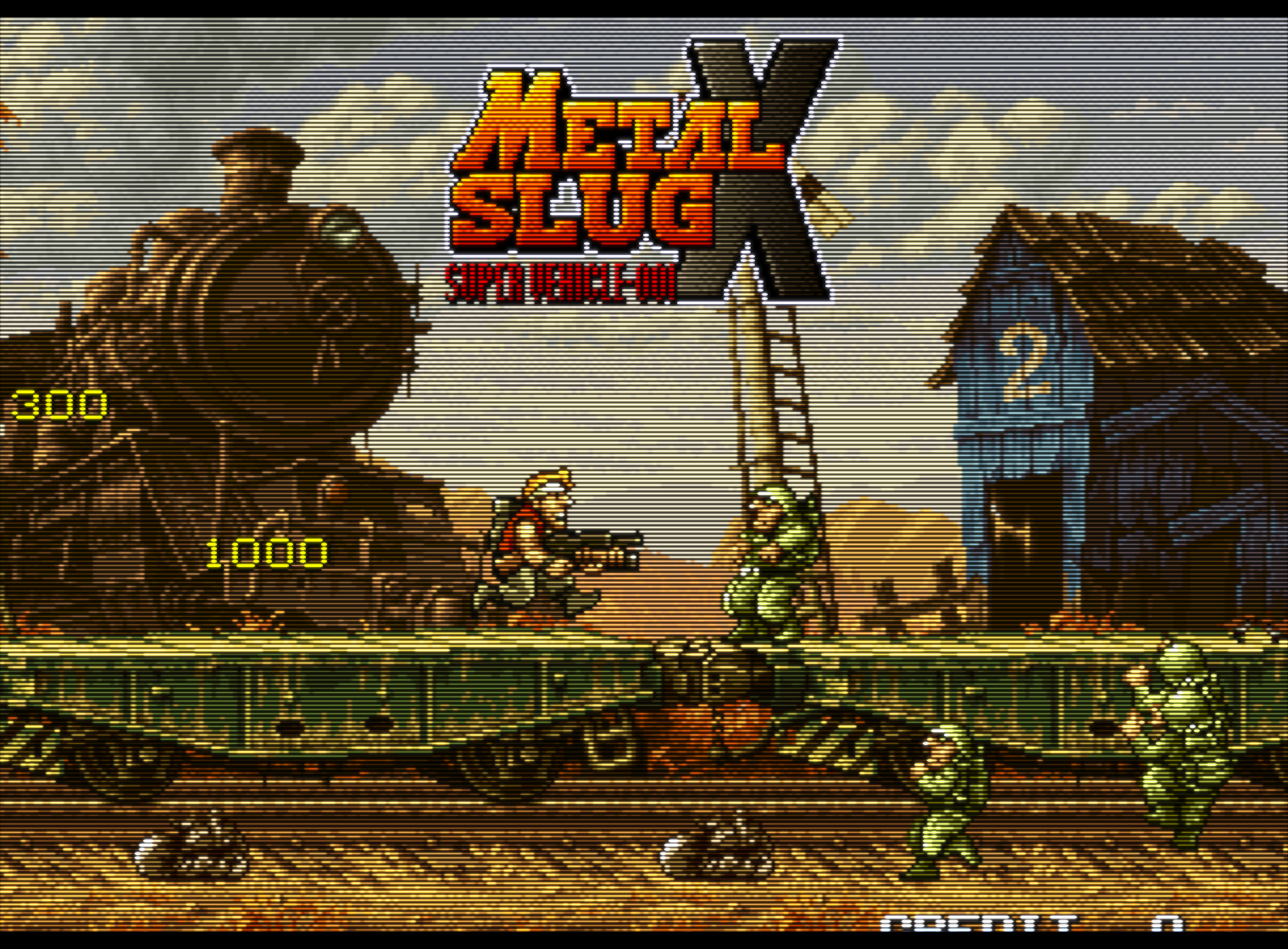
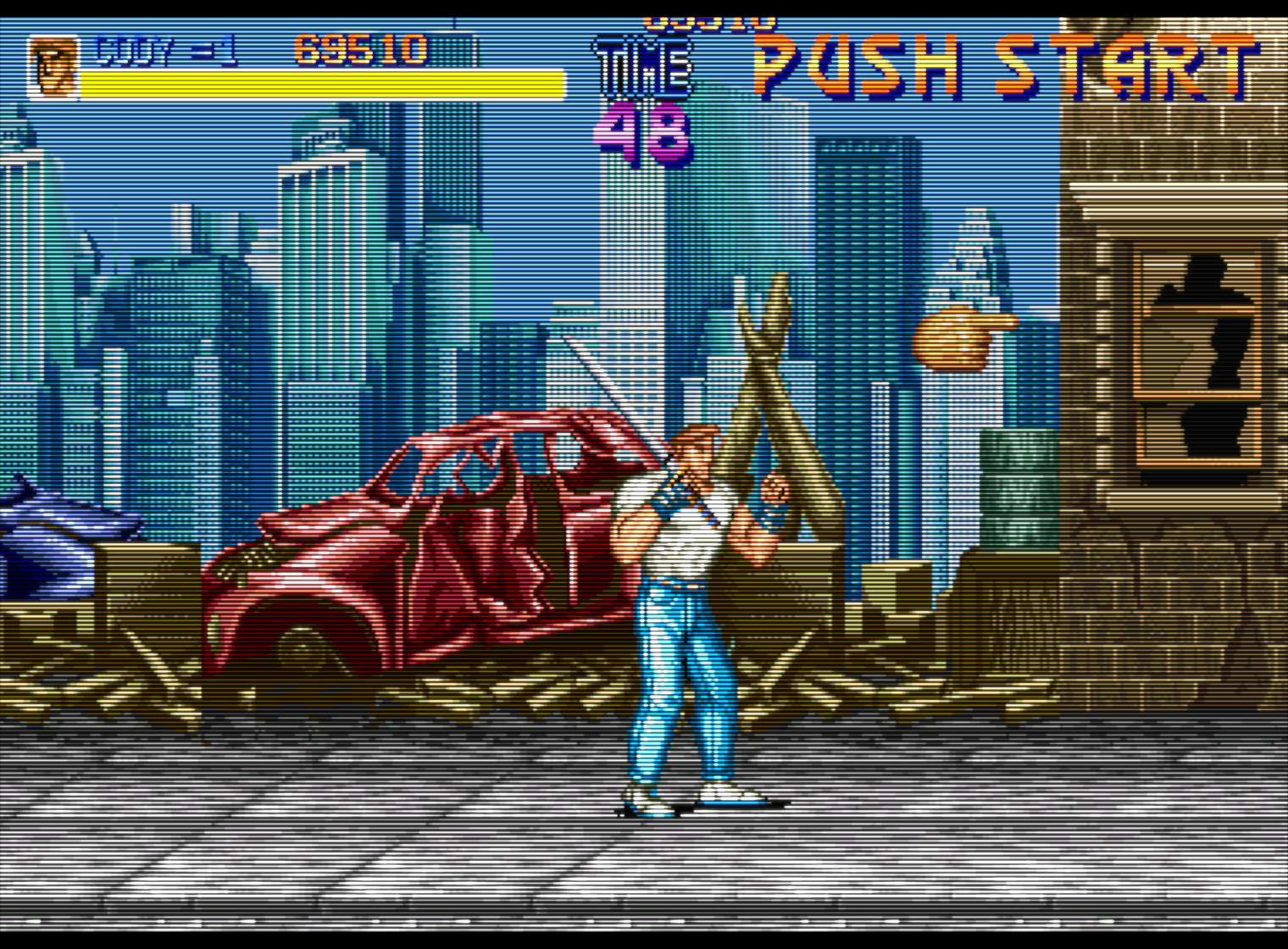
Can anybody recommend a good way to record gameplay with retroarch shaders running?
Using AMD card.

Can anybody recommend a good way to record gameplay with retroarch shaders running?
Using AMD card.
Nvidia ShadowPlay (through GeForce Experience) or OBS Studio (also uses NVEnc)
I think it’s better to capture the raw output because if people don’t use the correct scaling, all the scanlines and shader effects wind up looking terrible.
I think you can record w/shaders by going to settings -> recording -> use GPU recording
Then quick menu -> start recording
This should generate a .mkv file in the same directory as Retroarch.exe.
The reason I’m wanting to capture with shaders running is because some of the effects aren’t static in the shader. So pictures are about worthless for capturing these effects in action. My goal is to record and upload at 1080p, but idk. I’ll just wing it, lol.
Thanks for the advice and tips, I appreciate them.
Edit: Fixed, because I sounded like an 
 .
.
(Little off topic) Here’s some reading on an interesting fact that I’d like to share.
Wow, that’s even sharper than an LCD due to the lack of color fringing from an LCD’s sub-pixels. They could have just said “sharpest display.” Pretty cool!
Just wanted to give a shout-out to CRT-aperture. In terms of ease of use and overall image quality, it’s probably the best shader currently available.
Since I’m using black frame insertion to eliminate/greatly reduce motion blur, maximum brightness without clipping is a big concern for me.
Compared to the other shaders, CRT-aperture is capable of the greatest brightness without any clipping. It has the best-looking gamma curve while using brightness boost, and excellent options for adjusting the scanlines and sharpness.
With CRT-aperture and black frame insertion, my LCD is now matching the peak brightness of my CRT monitor. I’m seriously impressed; I didn’t think it was possible to get an image this bright with black frame insertion and scanlines enabled. This is with my display’s backlight at 100% and contrast at 80%.
The contrast ratio leaves a lot to be desired, but I’m still barely able to make out the inner bars on the PLUGE test pattern in a fully dark room. The backlight bleed makes it really difficult.
IMO, the next best options are CRT-Hyllian and CRT-Hyllian-Glow, followed by CRT-Caligari. Hyllian’s sharpness adjustment isn’t quite as flexible as Aperture’s, and Caligari can’t get quite as bright as Hyllian or Aperture without clipping.
Many of the other shaders (CRT-royale) are too complicated for what I need, stacking multiple effects on top of each other and/or mimicking low quality video signals and poor convergence, often resulting in a high performance cost and sacrificing ease of use. On the other end of the spectrum you have the ultra-lightweight shaders that simply don’t do enough to improve the image quality, and shaders that lack the options needed for adjusting scanlines and sharpness. CRT-aperture wins when it comes to ease of use, flexibility and image quality, with Hyllian being a close second.
Mark, I think you should turn on anti-aliasing.
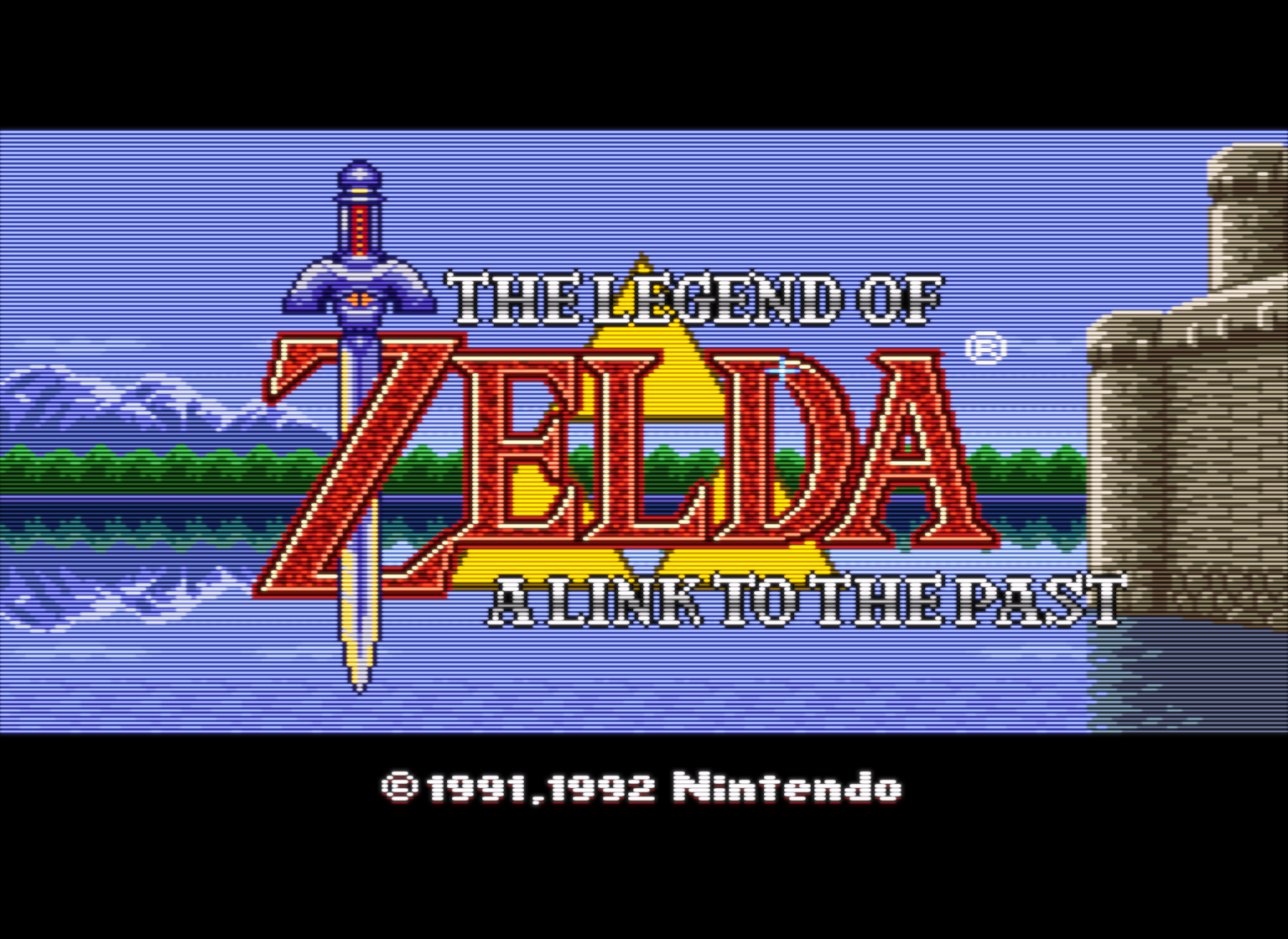
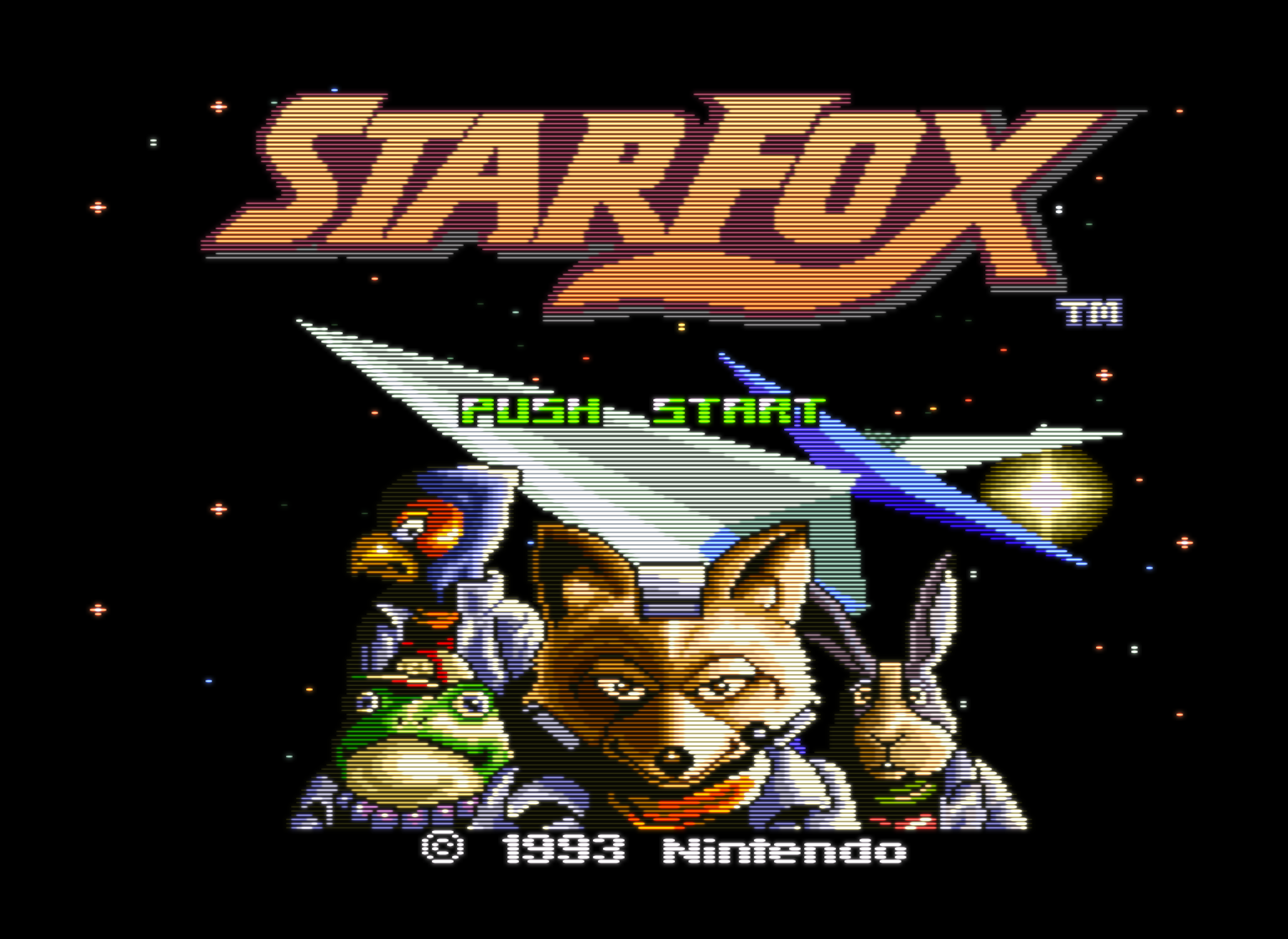
Here are a couple more shots of CRT-aperture. I didn’t like the bloom you get with the default settings, so I reduced it to what I felt was a reasonable level and increased the brightness setting to compensate until I was matching the max brightness on my CRT monitor. This messes with the gamma curve somewhat, but it looks very nice when actually playing a game instead of displaying a test pattern (IMO). This is with BFI enabled and my display backlight at 100%, so brightness and colors look very different in person. The glow in this shader really helps to brighten up the highlights without being too obvious or distracting.
Aperture is nice, on my personal scale for easy-to use - looks reasonably good out of the box on every display I’ve used, I’d probably rate Hyllian higher because it’s a bit faster among other things.
edit:
After playing around with Hyllian and Aperture some more, I think I’m now leaning toward Hyllian being my preferred shader. Once you remove the bloom and glow from Aperture, it becomes difficult to get it decently bright without throwing the gamma out of whack. Looks like Hyllian is still the reigning champ for overall ease of use and picture quality.
edit edit:
bah, now I’m back to using Aperture. After some additional tweaking I was able to remove the glow and maintain good brightness and gamma. The two shaders are very similar now, but Aperture’s sharpness/scaling looks a bit better IMO.
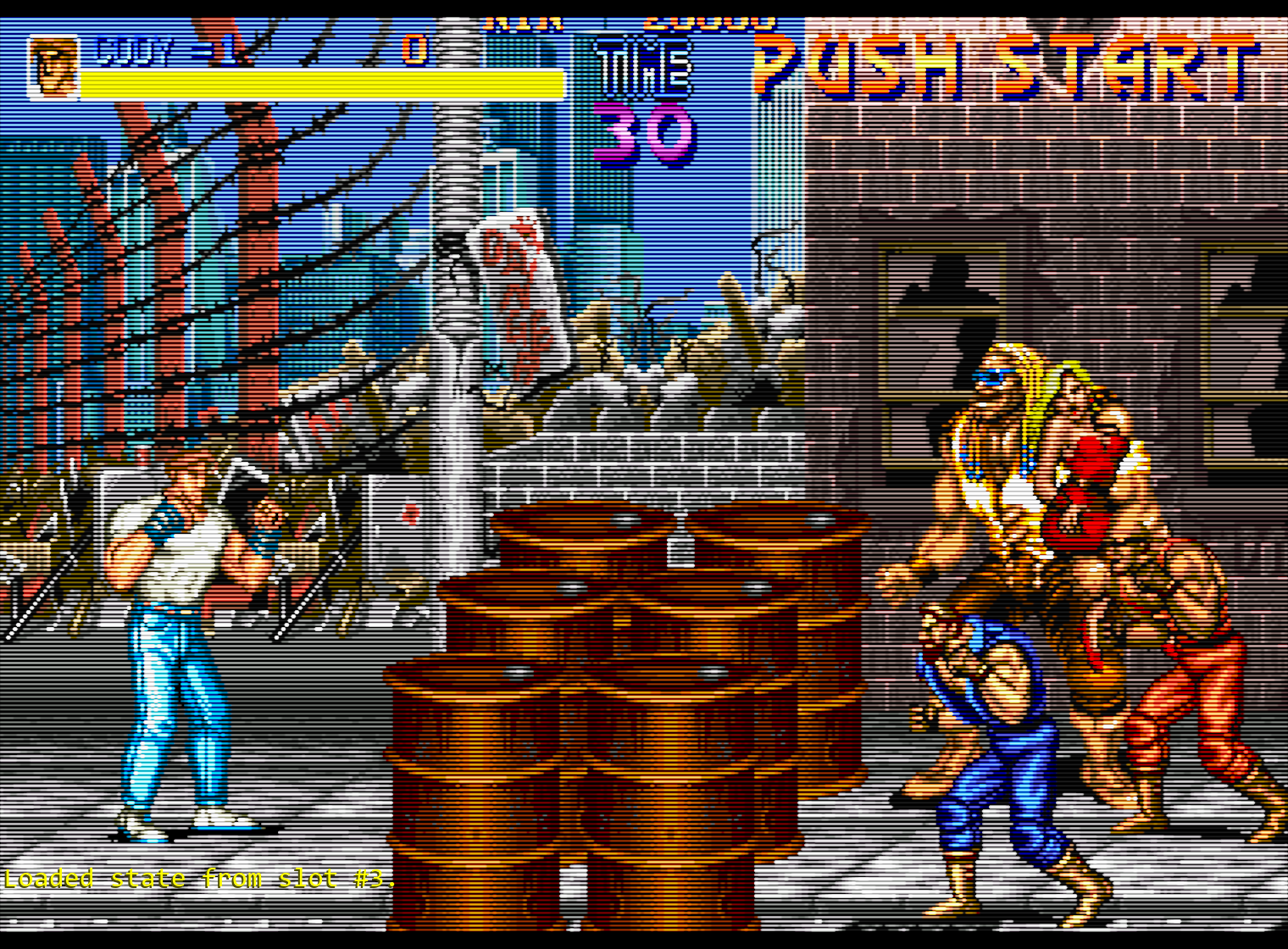
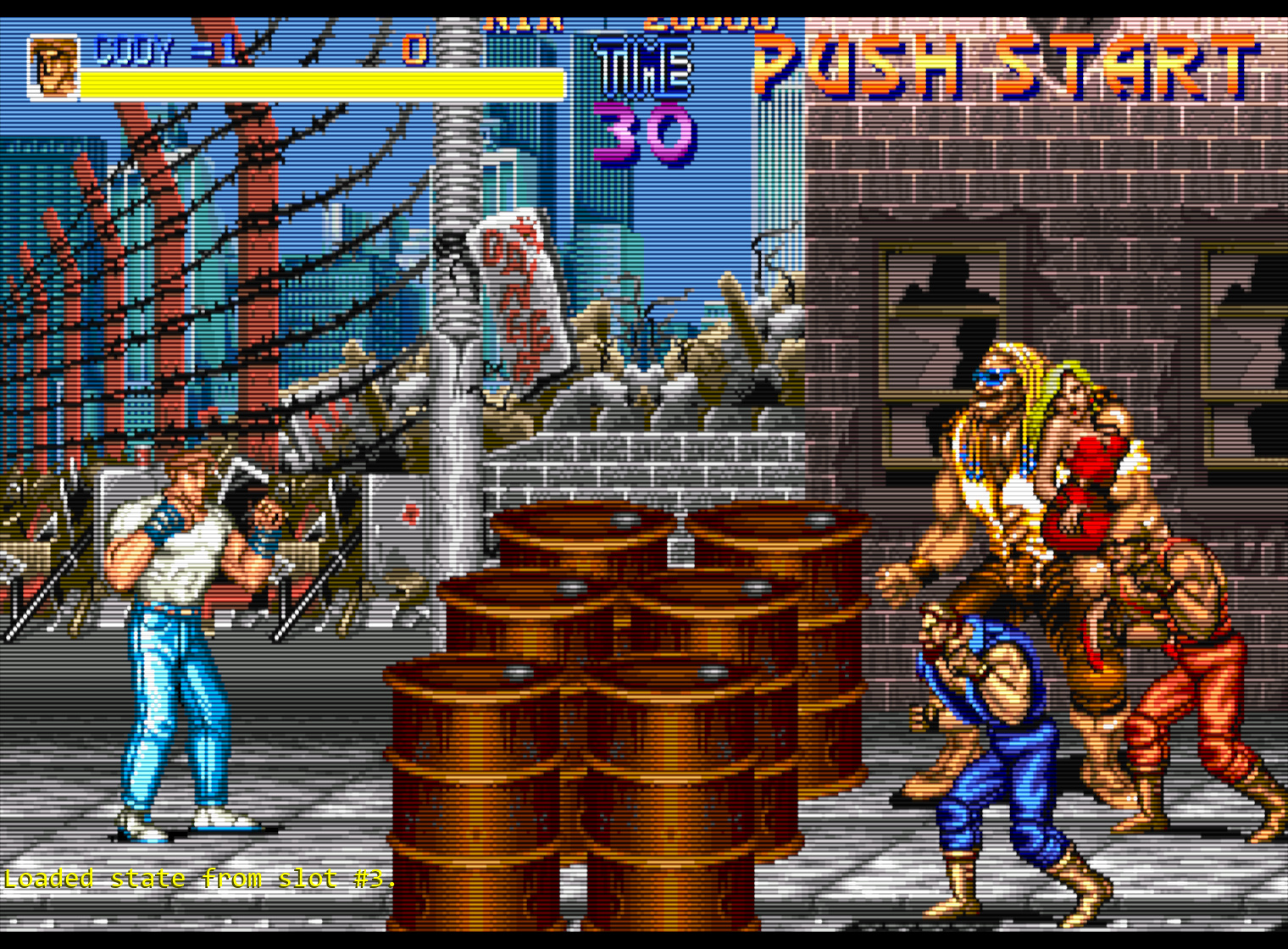
Aperture:
Hyllian:
What settings are you using for crt-apeture?
I raised gamma a bit because it was looking a bit under-saturated in some areas.
I also have black frame insertion enabled (which reduces brightness by 50%) and my backlight at 100%. Brightness and gamma are display-specific and will have to be adjusted per display.
alias0 = ""
BRIGHTNESS = "1.900000"
filter_linear0 = "false"
float_framebuffer0 = "false"
GAMMA_INPUT = "2.600000"
GAMMA_OUTPUT = "2.400000"
GLOW_DIFFUSION = "0.000000"
GLOW_HALATION = "0.000000"
GLOW_HEIGHT = "0.500000"
GLOW_WIDTH = "0.500000"
MASK_COLORS = "2.000000"
MASK_SIZE = "1.000000"
MASK_STRENGTH = "0.000000"
mipmap_input0 = "false"
parameters = "SHARPNESS_IMAGE;SHARPNESS_EDGES;GLOW_WIDTH;GLOW_HEIGHT;GLOW_HALATION;GLOW_DIFFUSION;MASK_COLORS;MASK_STRENGTH;MASK_SIZE;SCANLINE_SIZE_MIN;SCANLINE_SIZE_MAX;SCANLINE_SHAPE;SCANLINE_OFFSET;GAMMA_INPUT;GAMMA_OUTPUT;BRIGHTNESS"
SCANLINE_OFFSET = "1.000000"
SCANLINE_SHAPE = "1.000000"
SCANLINE_SIZE_MAX = "1.500000"
SCANLINE_SIZE_MIN = "0.500000"
shader0 = "C:\Program Files\RetroArch\shaders\shaders_glsl\crt\shaders\crt-aperture.glsl"
shaders = "1"
SHARPNESS_EDGES = "1.000000"
SHARPNESS_IMAGE = "2.000000"
srgb_framebuffer0 = "false"
wrap_mode0 = "clamp_to_border"Those settings look amazing, I’m gonna use them !
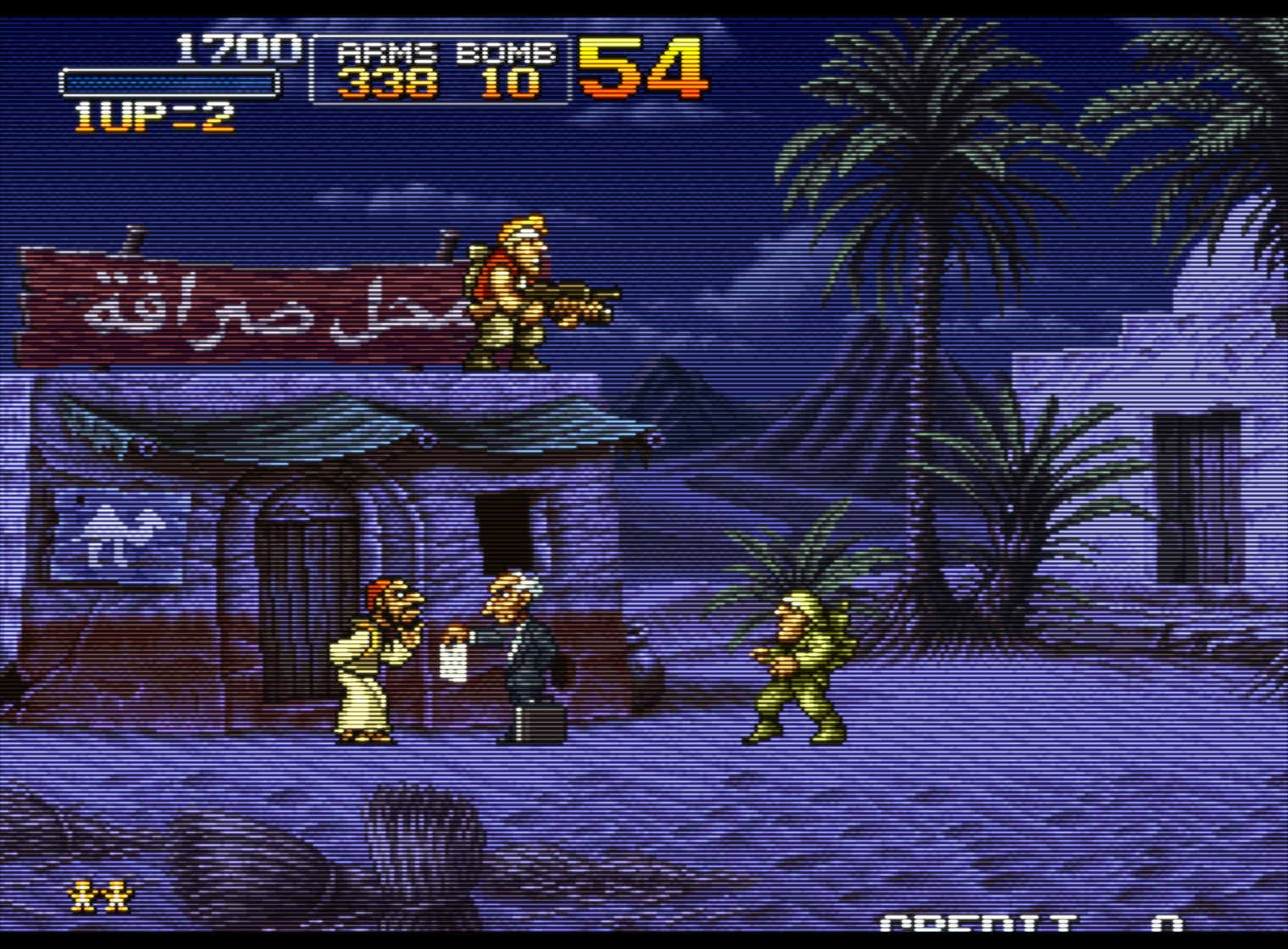
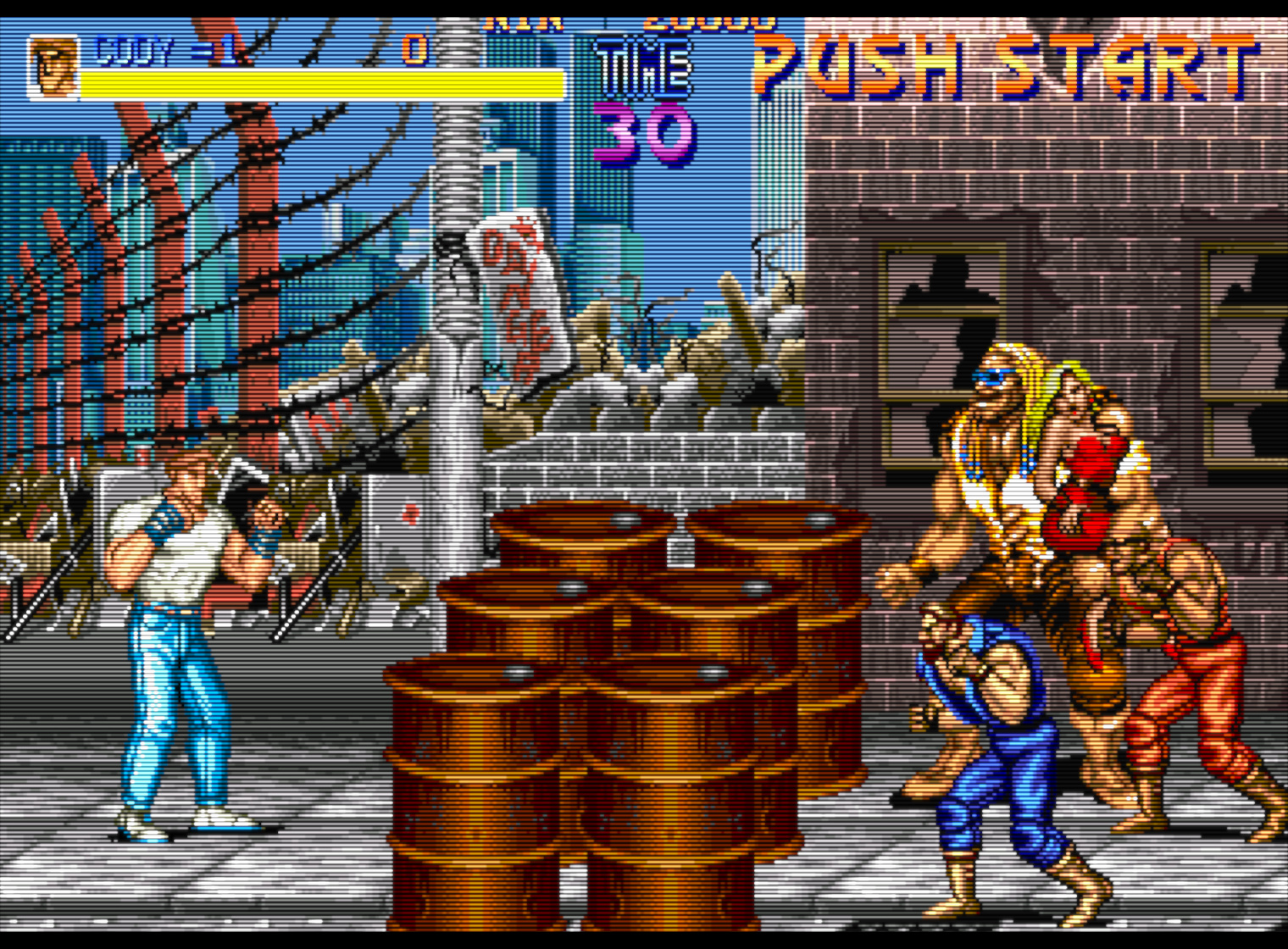
I have a couple of shader setups that I use depending on the game or just whatever I feel like playing on, the first is what I’d call a more ‘normal’ looking CRT, using ‘Neuromancer Sharp’ from Zombs shaders (with some brightness settings tweaked here or there I believe) it looks much like the real CRT tv I own, while the second is that very heavy scanline/sharp image Sony BVM look, just using CRT-Royale Kurozumi (also with a bit of brightness adjustment and a little diffusion added)
‘Normal’ CRT style:
BVM style:
@Siors Could you point me to Zombs shaders, I’ve been looking and the best I’ve found is his Reddit post, and Neuromancer Sharp isn’t included?
Ah yeah the reddit post doesn’t have the updated pack I see.
Here you go, zombeaver’s post a little ways down this page (if it doesn’t link directly to the post): https://forums.launchbox-app.com/topic/30010-the-big-ol-retroarch-shader-thread/?do=findComment&comment=316299
I’ve also realised I made a mistake, it’s Neuromancer Clear, not Neuromancer Sharp (which is a shader, but not the one I use!)
Thanks!
Jesus, that pack is gigantic compared to the reddit pack.
Looks pretty good, but I think you should add at least some slight scanlines in the “regular CRT” version. Not sure where people get the idea that scanlines aren’t visible on a regular CRT television. I had a Walmart brand 20" CRT a couple years ago (Sanyo) that I found used on Craigslist, and the scanlines were still visible from like 5 feet away. Plus, the pixel art was designed with scanlines in mind, using a half pixel scale, and artists relied on scanline bloom to do things with highlights and lowlights that aren’t possible on a modern display (sans shaders). Without that, the image loses all sense of depth.
The BVM-style shots look nice 
It’s too bad that BFI saps so much brightness; you can’t get the highlights bright enough without adding some amount of bloom when using BFI on an LED-lit LCD. Otherwise, I’d probably just slap Royale-Kurozumi on there and call it a day.
It would be cool to see some shader setups that take BFI into consideration; it’s a real challenge to get decent-looking scanlines, brightness and gamma when using BFI.