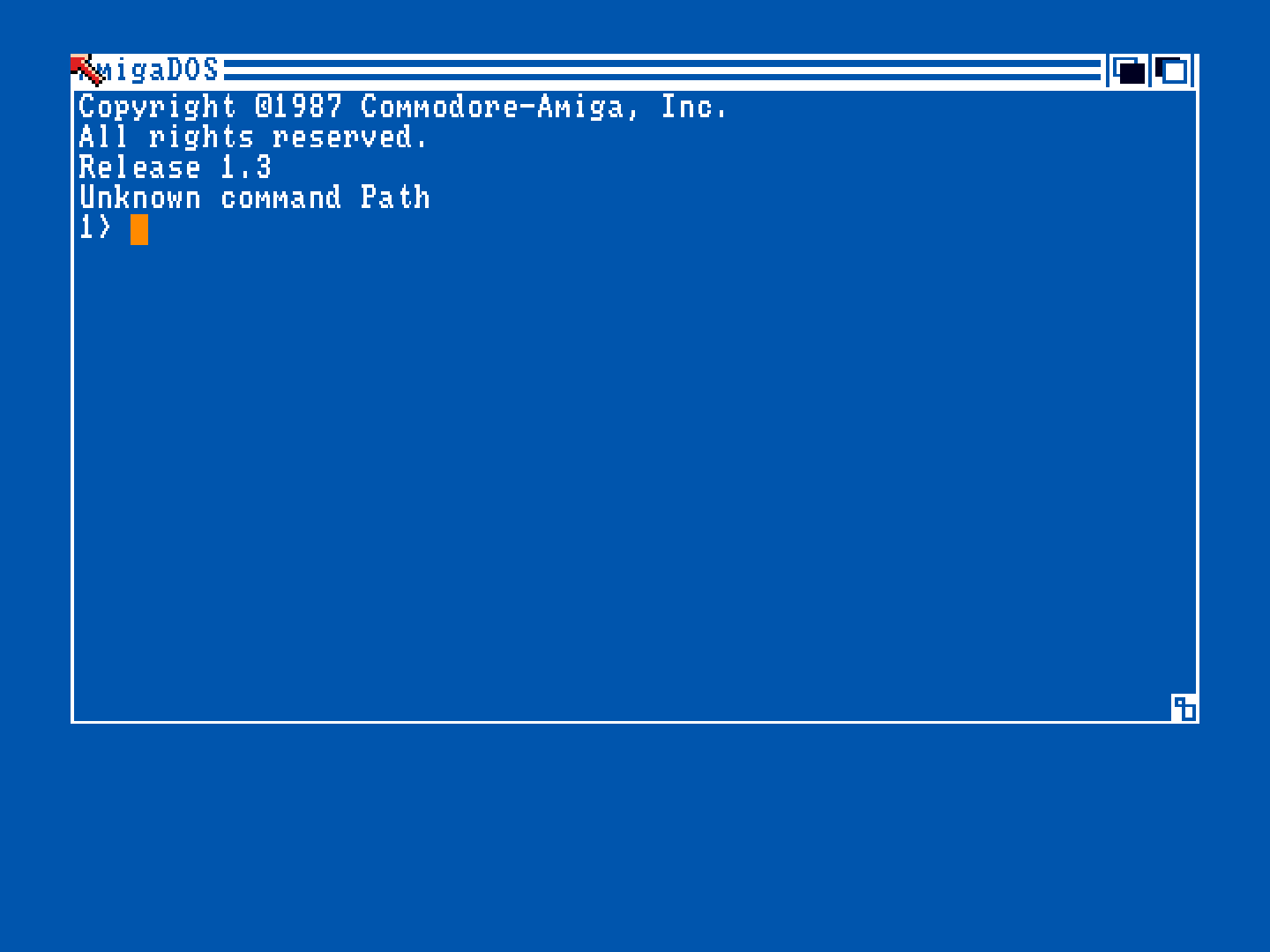
Actually, the p-uae core works decently, providing you use the build here: http://lindqvist.synology.me/windows/ (Windows x64 only, sorry). The only limitation that I’ve found so far is the inability to work with filesystem directories, i.e directories in the host system. There are two ways to load games in the P-UAE core:
For single floppy games or harddrives (bootable): you must have a valid configuration file called .uaerc in the same directory as Retroarch.exe. This is an example, emulating a vanilla Amiga 500 (with 4 floppy drives):
kickstart_rom_file=./kick13.rom chipmem_size=1 bogomem_size=0 use_gui=no nr_floppies=4 cpu_type=68000 cpu_speed=real cpu_compatible=true ntsc=false chipset=ocs immediate_blits=false gfx_linemode=double gfx_framerate=1 sound_output=normal sound_frequency=44100 sound_channels=mixed sound_interpol=none show_leds=true floppy_speed=100 gfx_center_vertical=smart gfx_center_horizontal=smart gfx_color_mode=16
(you must substitute the spaces with linefeeds, I can’t find how to format code correctly in the post editor)
Note the kickstart location: in the example above is ./kick13.rom, that means that the kickstart rom (called kick13.rom, and it’s Kickstart 1.3 since we target an A500) must be in the same directory as Retroarch.exe. Now you can load directly your .adf (or .hdf) file within retroarch and it should play (if it is Amiga 500 compatible, of course).
For multi floppy games, I think there is currently no other solution that write a .uae file yourself (or write a program that does that automatically!). You can use the above template and simply add the .adf images like this:
floppy0=C:\AmigaGames\Assassin.Disk1.adf floppy0type=0 floppy1=C:\AmigaGames\Assassin.Disk2.adf floppy1type=0
Then you can load the resulting .uae file in Retroarch.
Hope this helps.