
Hi @kokoko3k - I know it’s all written down, and I assure you I’ve tried several times, adjusting settings that seemed related, but to no avail. It’s my fault, I’m not capable. Thanking you in advance for your patience, as well as for sharing your valuable work with us, I wanted to understand how to get the image to fit fully on the screen when I decide to use flat geometry rather than round. What value exactly do I need to adjust? I’d like to change it a bit, using your aperture grill preset but in flat mode.


Hi there!
First, under “Bezel”, “Frame Alignment”, move the virtual bezel so that reflections look ok and not “shifted” versus the game content; from the screen you posted, it seems they are not, so maybe it will be sufficient.
But if not, Zoom under Override game geometry (to be enabled) will let you zoom the game content.
1 Like

I should have succeeded - once I activated the game geometry override I changed the zoom value from 100 to 98 - the reflections also seem aligned (if my eye is correct).
Thank you so much, you are very kind as always!
They are not, see a black space between the end of the game and the start of the reflection.
Tune it and don’t mind the geometry thing, the latter has to be tuned after the former is ok.
1 Like
You’re right, looking closer—it’s my fault for insisting on testing with my smartphone, because I actually use your work in conjunction with Duimon overlays on my PC. With my smartphone, the screen is too small and misleading. When I get home, I’ll make the appropriate adjustments following your advice. Thanks again.
1 Like
koko-aio long supported static options, but editing text files may not be the most handy way of managing functionalities, so I’ve just had the idea of a new file based and easier to manage plugin system.
Just committed to the main repo, if you pull it, you’ll see something like that in the config folder:
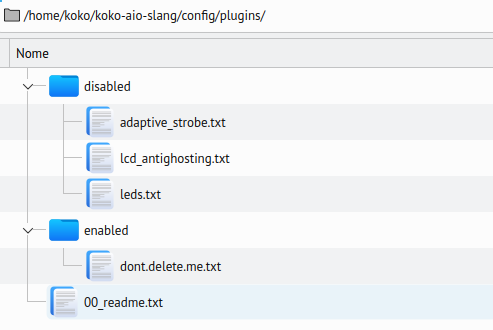
If you open the 00_readme.txt file, you will read:
"Move or copy the files from the disabled directory to the enabled one to enable the extra functionalities"
…and indeed it is what will happen; eg, if you copy the lcd_antighosting.txt file from the disabled to the enabled folder, it will be enabled and the shader will have the lcd antighosting feature added on the next shader reload!
As per the previous approach, not enabled functionalities will not put any extra load on the shader.
-
The PRO versus the previous approach is that the relative shader parameters will be loaded as needed, not polluting the already big parameters list with unbounded parameters anymore.
-
The CON is that if a plugin file is updated, you will need to copy the file again; i’m expecting this not to be a big problem, and assume smart users are smart enough


This idea came after thinking to a way of implementing a led bounded to the floppy drive access for C64/Amiga emulation, as being requested by PiCiJi, the Denise emulator developer.
Retroarch does not expose the needed bits, but Denise does and it seemed very appealing to me, but at the same time I absolutely didn’t want to pollute the retroarch version with something not needed;
…still, the led code may be of interest for some retroarch user, so here is it, still experimental, now under the disabled/leds.txt plugins:


5 Likes
I think I almost finished working on the leds plugin, it should be bug free, maybe there’s still one or two improvements to do to make the exposure less strong when the light is high, but anyway:
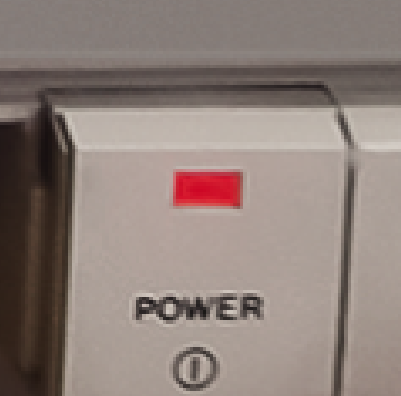
The leds survive the “nightification” feature, and also gained a parameter to modulate the overexposure, which in turn is less evident as soon the image gets brighter. Same goes for the halo:


Naked (original image)
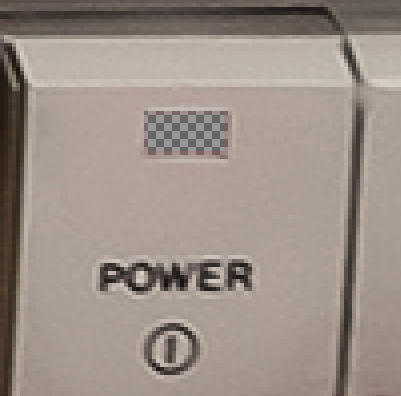
Altered opacity (see point 3)
Visible halo and strong overexposure:
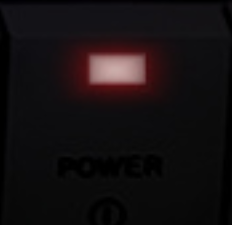
Less halo and less overexposure:
As explained in the past post, to enable it, you have to copy config/plugins/disabled/leds.txt to config/plugins/enabled/ and the led parameters will show up in retroarch:

All presets in koko-aio that show the 1084S has been adapted; the workflow to create and use a “ledified” image is:
- The led plugin needs to be enabled
- The overlay image needs to be enabled and needs to be a foreground image
- The overlay image has to provide one or two “powered on” leds already drawn on it
- With a GFX program, make the leds almost transparent, not 100% transparent tho, because the shader needs to access its colors.
- in the shader, move the led halos by changing Power led X and Power led Y values so that its center overlaps the led on the overlay image
- adjust halo size, halo shape (circle or square), aspect, tune exposure as you like.
- set the hue to the same color as the led which was already drawn on the original image.
Done.
-edit-
When using nightification and ambientlight applied over it (immersive preset), you can set now the overexposure to a negative number; doing so will cause the exposure to be dynamically modulated:


The alpha mask:

…Yeah, 1084S+1541 would require 3 leds 
9 Likes
Hi! I’m finally implenting koko-aio for my cabinet. It’s looking beatiful. I have my consoles already configured with nice backgrounds from @Orionsangel.
I wanted to use arcade games overlays like the ones attached, but I’m not sure if koko’s shader implemented monitor orientation detection, and wildcards for the overlay file image, as HSM-MB does.
My PC is not powerful enough for HSM-MB and besides is does not make sense having this very capable shader. Yeah, I could do some batch files, but I just wanted to know.
Thanks.


1 Like
Hey, glad to know!
Not sure what the question is tho, wildcards are supported across all of the shaders, because it is a Retroarch thing.
Aside from that, you should not need to worry about vertical vs horizontal games and wildcards should not be needed to handle rotation as it is autodetected, so keep your overlay straight and everything should work as expected as long as you leave the rotation option to its default value:
Back/foreground image enable -> Rotate/flip : 0
The only caveat is the different behaviour between vulkan and GLCore, when there are hardware accelerated cores like flycast, for a nasty Retroarch behaviour, GLCore flips the external textures over the Y axis.
If you plan to switch video drivers (or use GLCore) then wildcards could be needed, otherwise just use Vulkan and forget about it, at least for what concerns rotation.
2 Likes
Thanks @kokoko3k!! I am planning to use GLCore because is the compatible video driver for my Haswell, although maybe I’ll switch to Vulkan with a graphics card in the future, because even your shader is too much for Nintendo64 emulation as I discovered. Regarding wildcards and rotation, I was thinking to use two generic overlays (one for vertical and one for horizontal) in case of missing artwork, as a default behavior. That’s why I need both things. Thanks for your support!!!
1 Like
Yup, GLCore performs better than Vulkan on Haswell, at least under Linux.
Btw, have you tried presets under Presets_HiresGames_Fast/ ? They trade internal upscale for speed and are suggested for cores that upscale by themselves.
2 Likes
Hi m8 what is the best way to rotate a game (Final Fight arcade) using FBNeo core and Koko-aio. I want to use a vertical arcade overlay. Thanks
Uhm, not sure what the question is about.
Koko-aio does not support manual game content rotation, but FBNeo has a ‘vertical mode’ option that will do.
If the overlay is managed by the shader, you may need to rotate it via shader controls under back/foreground image section or leave rotation to auto (0).
1 Like
Probably some of my .slangp settings I’m using are interfering with this… and I’m getting distorted or shrunken overlay that requires me to zoom to about 2.3. This is definitely a me setup problem lol, when I rotated the game itself in fbneo core settings (vertical on) I get a fair bit of moire pattern… maybe because I’m using a 1080p monitor  I think I’ll leave this experiment here for now m8… thanks for your help
1 Like
Moire could happen in this case, yeah.
You can rotate scanlines via TATE setting and see if it fixes it.
Other options are fake integer scanlines parameter or fake slotmask, which can hide moire as well.
Fake slotmask:
First disable real slotmask emulation, if enabled:

…next enable fake slotmask emulation which, instead of drawing staggered tiny gaps vertically between phosphors, staggers the scanline itself; a value around 0.18 should work:

1 Like
I’ll try that pal thanks, I might try just rotate the overlay in photoshop and save it lol. It’s most likely not the right way to do it but I know it’ll work just to try it 
But moving forward I think I’ll do a fresh install
I still don’t understand what you’re trying to do, but ok lol
Just use a vertical overlay from the 4K vertical overlay thread in conjunction with yr shader. The vertical overlay’s are for both horizontal and vertical games but the screen remains vertical… I’d have to show you what I mean.
I see the screen not rotated, so 4:3.
You just need to set the overlay file path to bg_over in koko-aio, then alogn everything via “global zoom” and content geometry override, I guess.
1 Like