Additional Colour Boost options would be desirable when using HDR without any scanlines or CRT simulation whatsoever.
For example, the gba-color.slangp shader has an parameter for WCG displays (“Color Profile (1=sRGB, 2=DCI, 3=Rec2020)”), and looks best using this parameter, but that parameter is currently incompatible with the way RetroArch does HDR, forcing you to leave it set to sRGB/709 mode (matching Colour Boost “Off”), giving inferior results to those possible using WCG SDR.
Adding additional options to Colour Boost for “DCI” (P3-D65) and Rec2020 would allow such shader parameters to operate intended in HDR.
Alternatively, i suppose you could revisit your old “hdr10.slang”/“inverse_tonemap.slang” idea, and create a shader called “Retroarch Advanced HDR Options” or something like that, which could override the UI settings, and contain additional parameters for advanced users like these additional color gamut settings, and decoding gamma.
Ah interesting what was the reasoning behind XRRGGBB masks instead of RRGGBBX? I am going to revisit the slot masks because 5K monitors can probably do them properly with their 12 pixel height scanlines - the bar across will be proportional to the height of the scanline at that resolution - about 8.333% ish lol.
The problem if I’ve understood you correctly is that unless you know about these things you wont have the faintest idea what option to select. For casual users in the main RetroArch menu they can understand ‘Colour Boost ON/OFF’ but I doubt they would understand ‘Colour Boost DCI/Rec2020/sRGB’ etc. Isn’t it better this keeps in the advanced section of the shaders? Dont get me wrong its a great thing to have but surely simplicity has to reign or otherwise you end up with the Sony Megatron’s rats nest of options scaring people off? lol
Tbh, i would suggest that by that logic, the Colour Boost setting shouldn’t exist at all, for the exact same reason that you removed the Contrast setting. The “correct” Colour Boost setting for someone who doesn’t know what that setting does is always going to be Off/standard 709 primaries.
I haven’t the slightest idea. Just thought I’d give you some food for thought.
I’ve learned quite a bit about slot masks over the last few months. The most important probably being that they require the most brightness to be emulated well, especially with BFI. Another thing is that they look much better when the horizontal slots near the center are evenly centered between the scanlines as well as when there are no upper and lower slots horizontal slots too close to the scanlines. For those situations, I have experimented with increasing the size of the scanline gaps until they occlude any near scanline gap horizontal slots. For the vertical centering and alignment, I use the “Vertical Offset” Shader Parameter.
The thing is, this vertical alignment changes at different Integer Scale values.
I do similar things for dot masks as sometimes it looks weird when the scanline gaps appear to cull dots leaving less than half a dot or a quarter or third or sliver of a dot at the top and bottom of a scanline. Perhaps some sort of optional clamping or snapping mechanism to prevent “unnatural” clipping of the slots and dot mask phosphors might be a useful feature.
This may not be a completely accurate feature as I’ve seen unaligned slotmasks and scanlines in real CRT photos but it doesn’t look as bad as when it’s emulated.
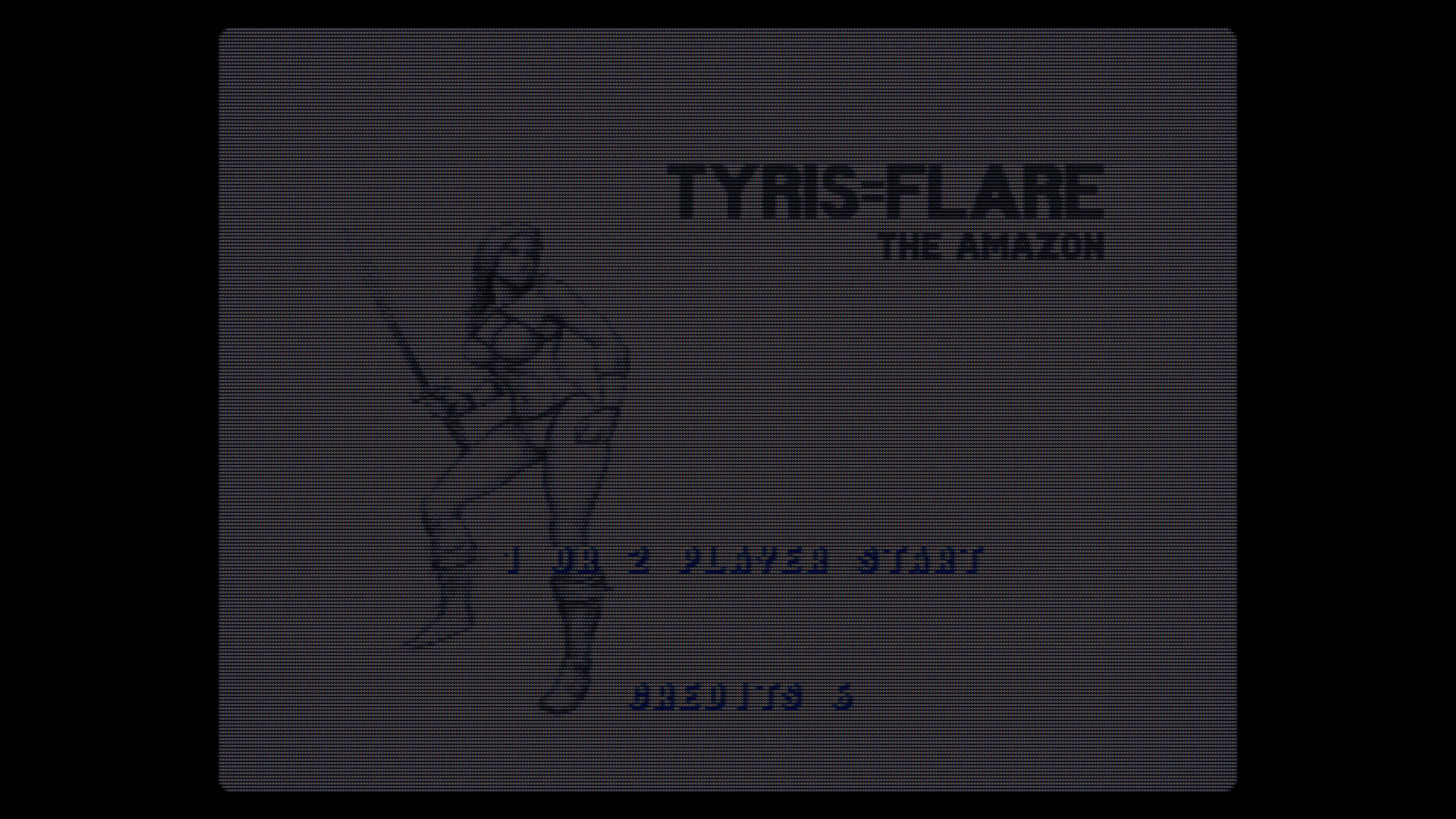
Some raw unedited thoughts which came to mind while analyzing and comparing the previous JVC-D Series pics to my Shader preset pics of Tyris' forearm.
Negative Glow - darkening transparency effect on the Scanlines that is lower when the Scanlines Gaps are narrower as is the case where there are bright pixels and higher when the scanline gaps are wider as is the case where there are dark pixels.
Observations, slots are sharp, edges of Scanlines are soft.
NesGuy’s grid sort of simulates this.
In the Sony Megatron unaligned example with Tyris’ forearm, both the slot and the scanline gap is sharp, only the slot should be sharp and the interaction of the mask and the scanline gap over bright areas could be modulated by adjusting the alpha transparency between the Phosphors/mask and scanline gaps.
Currently dynamics seem to be a bit 2 dimensional. What’s needed is 3 dimensional dynamics when it comes to mask/phosphors and scanline layers in order to more accurately emulate the natural blending that takes place when these different elements overlap.
…And let’s not forget the unexcited vertical Phosphor stripes. That’s a layer as well.
At no point do the scanline gaps sharply bisect the Phosphor triads in bright areas in which the scanline gaps are narrow as we’re seeing in the Tyris’ forearm example.
On a real CRT, it seems as if Phosphor Strength = Brightness x Saturation and is proportional to Beam Strength, which is inversely proportional to Scanline Gap Strength.
So on a bright pixel the scanline gap cannot get dark enough to fully occlude a Phosphor triad.
This is not the case with the slots. They are always at maximum strength as they are a passive component.
These are exactly the kinds of discussions and comparisons we’ve been having here:
This is the taller Slot Mask with slot mask and scanlines aligned and scanline gaps adjusted to cull horizontal slots appearing too close to the scanline gaps:
This is the consensus @Nesguy and I have reached when it comes to Slot Masks with BFI and brightness:
8K Masks Modified to 4K Mask Layouts:
In this example the slot mask height is not as tall and overall the alignment is not as strict. similarly for the using scanline gaps to cull the horizontal slots appearing close to the scanlines it doesn’t look so bad when the scanline gaps are larger in the darker areas but it looks a bit strange on Tyris’ forearm where you can see the slot mask slots appearing close to the scanline. I think on a real CRT there would be a more gradual fade/drop off to black which might make things like that less jarring/noticeable.
So in other words what I’m trying to say is that when horizontal slot mask slots and dotmask dots appear close to thin or similarly sized scanline gaps, it produces strange moire pattterns.
Proposal: Add a 1440p Display's Resolution section and replace the 8K section with additional 4K Masks with similar height as the existing 8K Masks or revamp the Mask/TVL selection to show the actual Mask Layouts for more advanced users to have a little more control and transparency.
I think 1440p users might be feeling a bit lost or left out when there isn’t a 1440p selection in the Display’s Resolution section while 1440p is one of the most common PC Display Resolutions and it does a great job with many mask layouts and TVLs and some of the highest refresh rate monitors are of the 1440p variety.
You have to check out the Shader Stack I use in my latest “CyberLab Megatron miniLED Epic Death To Pixels 4K HDR Shader Preset Pack 31-12-25”.
It adds quite a few quality of life features via additional shaders:
It has the awesome CRT-Guest-Advanced-NTSC section with features like Afterglow, RF Noise and Font Preservation thanks to the amazing work of @guest.r !
It uses a modified IMG-Mod shader by @HunterK, which adds built-in support for proper overscan mask cropping and automatic recentering, along with film grain and rounded corners. I recently replaced the film grain version with one that doesn’t include film grain in favour of CRT-Guest-Advance’s RF Noise.
It also includes the full Grade, which was needed for things like the Sega Genesis/Mega Drive Luma Fix and Pallete as well as the SMS Blue Fix.
Last but not least, it integrates XBR-LVL-2 for subtle smoothing which helps bridge the gap between analog CRT displays and their “natural” anti-aliasing and modern digital displays which can sometimes be either a bit too sharp and aliased or a bit blurry.
The only optional feature that I might have liked to see that’s missing is support for reflective bezels and overlays, internal handling of scaling and aspect ratios and maybe CRT-Beam-Simulator Support but I have never gotten that to work properly on my display so I stick with my TV’s built-in BFI/Strobing.
These are examples of what the stack is capable of in the right hands:
Yes it’s absolutely a fair point but there is a kind of a slightly washed out look when displaying SDR content on a HDR screen that Microsoft was specifically trying to fix with this expanded gamut matrix. I kind of agree with them and it does give the scanline simulation more of a colour ‘pop’ although incorrect to the original.
Look I totally agree that this is technically the correct thing to do but if I ask the casual user what ‘Content Colour Gamut’ means Im sure 95%(99%?) wouldn’t have the faintest idea - its the reason why I renamed ‘Expand Gamut’ to ‘Colour Boost’. The reason its in there is because it was in there from the start, if I started fresh today maybe I wouldnt add it or hide it in advanced settings but its there purely for the users who dont care and just like a bit of a colour boost. Im open to being swayed on the matter though.
Yes the whole thing about 5k displays and slot masks is that you can have them centered on the scanline and be about the right height proportionally to the scanline - ita the perfect resolution for them.
If you’re open to being swayed on it then I say leave it be. It’s an option. No one is forcing anyone to use it and different users have different tastes as well as different setups. How many users even had colourimitry tools and calibrated CRTs growing up?
Many if not most of my presets including some of my most recent ones use this expanded colour gamut mainly because I use my eyes to calibrate, I like to experiment and it simply looks better to me.
I don’t think it should be hidden from casual users either nor advanced users.
If it’s removed or deprecated, I can see myself having to abuse the saturation parameter to compensate. Which would probably be less than ideal.
Hmm… perhaps keeping the basic setting as Colour Boost and giving the new gamuts nicknames would work? Say, Off=709 (same as now), On=Expanded709 (same as now), Balanced=P3-D65, and Extreme=Rec2020? That way the options are there for advanced users to make WCG SDR shaders work correctly in HDR, while more casual users get the knock-on benefit of additional “poptions” in a form that is easier to parse?
(It could also be Off/Light/Full/Extreme, or anything else. The gamuts being available and what the setting actually does being documented for advanced users is the important thing.)
What it ultimately comes down to is that it is currently impossible to make gba-color.slangp and other similar shaders work correctly to their full potential with HDR enabled. You have to disable HDR and use WCG SDR instead.
As i see it, the available options to fix this are:
a) Adding those additional gamuts to Colour Boost, regardless of how we name those settings.
b) Making a bespoke “Advanced HDR Options” shader that overwrites the Colour Boost option with those gamuts available as a parameter.
c) Making it possible to turn off scanlines in Megatron like you can in guest-advanced, in which case Megatron would do double duty as the hypothetical “Advanced HDR Options” shader from option b.
I don’t ultimately care how we get there, but I feel very strongly that one of those options needs to happen in some form to make RetroArch’s HDR support more feature complete.
Ok but those shaders would never have worked correctly in the past if they’re not compatible with 709?
Shouldn’t those shaders be changed to either have the option to convert to 709 - a straight forward matrix multiply OR create a hdr native version (which turns off the built in inverse tonemapper and hdr10 conversion - see below) and itself take care of the P3-D65 to rec2020 or whatever it wants to do like the Sony Megatron does.
More work for the latter but pretty much six of one half a dozen of the other in terms of end result.
The beauty of exposing these settings to the shaders is that shaders can use them to decide themselves what to do - they can decide what ‘colour boost’ on off should mean. If they need more than on/off then they can add their own parameter and ignore colour boost altogether in the main menu. It does sound in this case that colour boost should be ignored.
The built in HDR inverse tonemapping and hdr10 conversion is really only a band aid to help all the shaders use HDR without the authors having to do work - its not really meant as a proper solution to any one shader.
Just for clarity of implementation all I did was rename the option - its all still expand gamut in the Retroarch source code and does exactly the same thing.
c) Making it possible to turn off scanlines in Megatron like you can in guest-advanced, in which case Megatron would do double duty as the hypothetical “Advanced HDR Options” shader from option b.
We kind of already have that the key is to put:
#pragma format A2B10G10R10_UNORM_PACK32
in the final pass which turns off the internal inverse tonemapper and hdr10 conversion that RetroArch provides and then include:
Isn’t this the whole point of hiding certain things under Advanced Settings? You can’t make the proper selection without having the baseline technical knowledge anyway. Abstracting things behind made up lingo is just annoying.
My consumer television uses the technical terms. If it’s good enough for a TV, I can’t see why it can’t be good enough for someone who is knowledgeable enough to set up emulation.
Hi @MajorPainTheCactus, just a small update: I decided to test the AppImage nightly build of RetroArch on Linux and the HDR option still doesn’t appear on it, even with these updates to the RetroArch HDR system. For Linux systems, AppImage are self-contained application packages, with all its dependencies bundled directly in the .AppImage binary, making it portable like some Windows .exe files. So, the missing HDR option is probably due to some library missing or something going wrong, and this will likely only be fixed if someone looks what is missing/wrong and fixes it. In the Flatpak build, the HDR option is there, so I just need to wait for the HDR metadata update to test how it behaves, but I couldn’t compile the Flatpak build the last time I tried, so maybe I’ll also have to wait for a new release after the HDR metadata update to be able to test it.
But I took the opportunity to download the updated Sony Megatron V2 from your repository, which hasn’t even been merged in the Libretro shaders repository yet, and it works perfectly in SDR. I loved that now it doesn’t even need to switch between SDR/HDR in the shader parameters like before. As I mentioned, my hardware is modest, an AMD desktop with its iGPU and a cheap entry-level monitor running Debian Linux, but even so, the Sony Megatron shaders look great after smoothing the scanlines, I really like getting close to the screen and seeing the details of the mask, just like I did as a kid with my real CRT (that still exists and works ).
So, thank you again for the excellent work and dedication!
Apparently CRT-Guest-Advanced already does this with the scanline gaps appearing “behind” the Phosphors or at least appearing much weaker, diffused and less opaque than what was presented in the Tyris’ forearm example.
It’s controlled via the “Preserve Mask Strength” and “Preserve Scanline Strength” Shader parameters.
When Preserve Scanline Strength is set to 1.00, the Scanline gaps appear sharp, opaque and over the phosphors, bisecting them unnaturally on bright pixels or where the scanline gaps are narrow.
When it is set to a low value, it looks much closer to how it is in the real CRT photo, with the scanline gap appearing behind the phosphors and that portion of the mask appearing dimmer, which makes sense because the phosphors over the tiny scanline gap are less energized.
@MajorPainTheCactus, it it feasible/possible to have the Mask/Phosphors and scanline gaps have the proper Z order with alpha blending and behave more similarly to what is in the CRT pics and what happens in CRT-Guest-Advanced?
Also, if it is feasible and possible can you implement the “Base Black Mask” feature which allows us to see the unexcited vertical phosphor stripes if we go close enough to the screen and also gives the edges of the phosphors something “non-zero” to fade and blend into as energy levels decrease.
Evening all, so @hunterk has kindly merged (thanks!) the latest version of the Sony Megatron Shader V2.6.0. The eagle-eyed amongst you might notice we’ve jumped from v5.8 to v2.6.0 as in a new major number. This is because this is not only a major rewrite it is also more tied into the RetroArch runtime as it now uses the HDR menu’s settings rather than its own settings. This means it will only work with builds from last night onwards .
Because we allow users to download the latest shaders we will have the situation where old versions of RetroArch wouldn’t work with the new Sony Megatron shader and thus I have left the old v1 shader as is and the new v2 shader is named ‘crt-sony-megatron-v2’. This has the pleasant side effect that all presets should still work perfectly fine and users can upgrade to the new version of the Sony Megatron at their leisure.
Although this is largely a rewrite it should still be quite close to the original but with fixes and QoL improvements and be able to target devices like the Raspberry Pi 5 that I’m particularly interested in supporting:
Quality Improvements:
Linear inverse tonemapping without SDR elbow - The old version used a piecewise function with a hardcoded knee at 0.75, creating a “shoulder” that treated highlights differently: sdr_shoulder_factor = (1.0 - 0.75) + luma * 0.75 . This meant shadows and midtones (below 0.75) were expanded less aggressively than highlights, compressing the tonal distribution. V2 uses a pure linear rational function across the entire range: input / (1.0 - input * (1.0 - 1.0/peak_ratio)) . Every stop from black to white gets expanded proportionally to the peak_ratio, preserving the original gamma curve’s shape. No artificial kinks in the tone mapping - what goes in at gamma 2.2 comes out at gamma 2.2, just scaled to HDR range.
Max-channel scaling instead of luma-weighted - V2 finds the brightest RGB channel and scales all three channels by the same ratio to preserve hue exactly. The old version calculated perceptual luma (0.2126R + 0.7152G + 0.0722B), then scaled RGB proportionally to that, which could shift hues when the max channel and luma diverged (particularly noticeable in saturated blues and reds).
Better ST2084 (PQ) conversion - The old version used abs(channel) before the power function, which could produce incorrect results if you somehow got negative values in your linear HDR signal. V2 clamps to positive values first with max(colour, 0.0) , then processes each channel. This is mathematically cleaner - negative light doesn’t exist, so we enforce that constraint before the perceptual quantizer curve rather than silently converting negative values to positive ones inside the transfer function.
Performance Gains:
60% smaller shader code (1697 → 683 lines) - Fits easily in the GPU’s instruction cache instead of thrashing it with uber-shader bloat.
Single texture read instead of two - V2 only samples SourceHDR, eliminating the redundant SourceSDR texture fetch. Halves memory bandwidth in the hottest code path.
Branchless mask lookups via LUTs - Replaced nested switch statements with const array indexing ( kApertureGrilleLUT[lcd][tvl][bgr] ). GPUs perform a single scalar load from constant memory per warp instead of navigating a control flow tree. Array indexing is arithmetic, not branching—GPUs prefer this.
Reduced register pressure - The old shader’s massive switch-case structure forced the compiler to reserve registers for potential code paths even if dead. V2’s linear control flow lets the compiler reuse registers aggressively across the simplified GetMask functions.
Usability Wins:
Native HDR integration with RetroArch - I modified RetroArch to expose new HDR constants (PaperWhiteNits, ExpandGamut) that the shader can read directly. No more manually duplicating values between RetroArch’s HDR menu and shader parameters - V2 reads exactly what you’ve set in RetroArch’s settings automatically
Streamlined parameter menu - Removed the clutter from the old version. V2 puts your display settings (resolution, subpixel layout) right at the top where you need them first. The old version buried these under walls of instruction text and mixed HDR/SDR settings together
Clear SDR/HDR separation - V2 has a dedicated “SDR MODE SETTINGS” section that clearly states “These settings only apply when HDR is turned off”. In the old version, HDR and SDR parameters were interleaved in the same section with “HDR:” and “SDR:” prefixes - easy to get confused about what applied when
Removed obsolete parameters - Cut the manual HDR toggle, Peak Luminance, and Paper White parameters since the shader now reads these directly from RetroArch. Also removed Pin Phase/Amp controls that most users never touched
Better grouping - Instructions and reference info (white point values, gamma cutoffs) are now tucked under the CRT settings where they’re relevant, not blocking the top of the menu
Reorganized presets - Split HDR and SDR presets into separate folders for easier navigation
Bug fixes galore - Squashed numerous issues from the original implementation
All the existing CRT model presets (PVM-2730, PVM-20L4, JVC TM-H1950CG, etc.) have been updated to V2 versions.
I can assure you every TV out there has marketing terms for pretty much every technical term. I have a Samsung S95 and its menu is full to the brim of them at the top level: ‘Film’ mode, ‘Dynamic’ mode etc In game mode I have RPG mode, FPS mode.
It makes complete sense to have straight forward non technical terms in your high level menus. Every consumer product does this.
Advanced settings are different, yes, but thats where the shader parameter menu comes in.
Yes sorry I haven’t done the Linux work yet - this work was done in building up to doing that. I needed to do some perf work and fix some big issues before I went to enabling HDR on Linux.
We are talking about two different things. RetroArch has built-in support for advanced settings which are hidden by default. A specific color gamut selection could be put there if it’s ‘too technical’ for users.
The color boost setting seems to be intended for early ‘HDR’ monitors that had poor tone maps, resulting in washed out colors. Make the description explicit: ‘Increase color saturation’ with description ‘Increases saturation of colors at the expense of accuracy for monitors with poor HDR support’. Just make it explicitly clear what the purpose of the setting is.
Yes CRT guest advanced shader is usually trying to simulate the look of a CRT on cheaper SDR monitors by adding loads of software effects (and it does it brilliantly). The Sony Megatron is tackling the problem from a different angle: do as little as possible in software and let the display do all the work i.e hardware effects - this means using it with very expensive displays to recreate the CRT look.
The 5K monitor resolution slot mask is just because scanlines then have 12 pixels for 240p. You then divide that by two for 6 pixels high and then -1 pixel for the horizontal bar. This gets you near the right ratio for horizontal bar and scanline (8-9%) and keeps the the horizontal bars in the same position going down the scanlines as you point out.
Most of the lighting effects you describe fall out of the higher brightness but I’m sure there is a bit of halation etc that can be thrown in. Signal noise is a whole other story though.



 ).
).