
CyberLab Megatron V2 Presets incoming…


4 Likes
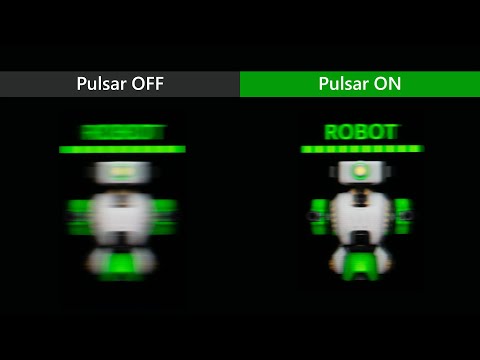
Sorry if this has already been asked. Is there a way to get preset shaders working with Shaderglass since they both use libretro?
Maybe you should ask the ShaderGlass devs, since they’re the ones who are working on adding support for slang shaders.
I don’t use ShaderGlass. I’ve tried it but haven’t gotten around to learning how to use it properly yet.
Thanks for the reply. I’ll try asking.
You should definitely give it a go! It’s a gamechanger having retroarch shaders work seamlessly for any application. Been using it for old TV series and games like Deus Ex.
Well I did try it and it’s yet another app to learn with all of its quirks, hotkeys, requirements and conditions.
I already use RetroArch’s FFMPEG Core for video playback and I’ve setup and used both the WindowCast Core and Reshade for PC games.
I even made a Reshade preset pack which can be downloaded via the first post of this thread.
Excellent video for those who make CRT shaders and presets:
This is another must view for those interested in making CRT shaders and presets.
1 Like
Hi CyberLab, first of all I want to thank you for your amazing work, and especially for your willingness to help. I’ve always seen you actively replying on Reddit, YouTube, and of course here as well. I’m more of a silent user, but I’ve been enjoying your shaders for years now.
Currently, I’m using a MiniLED TV (Samsung Q90C) that reaches close to 1500 nits… at least according to the Nvidia app. I wanted to ask you a couple of questions. I’m using your latest, most up-to-date shader, and I configure each emulator with its corresponding shader.
What confuses me the most is the following: in the shader parameters, you mainly recommend adjusting Peak Luminance and Paper White Luminance. Aside from those, should I be modifying anything else? I ask because in the past I used to change the resolution to match my display even though it’s not set to 4K by default and I also experimented with leaving RGB at 0. However, I noticed that the colors start to look a bit strange.
When I leave everything at the default settings 1080p and RWBG it actually feels like the image looks better overall. Maybe I’m misunderstanding something or doing something wrong.
Sorry if I didn’t explain myself very clearly; English is not my native language. Once again, thank you very much for everything you do.
2 Likes
“… first of all I want to thank you for your amazing work, and especially for your willingness to help.” @Cyber

1 Like
You did well. You’re welcome.
You don’t have to adjust the “Your Display’s Resolution” Parameter as it’s already setup and designed for 4K displays.
If you want to further customize or stray from my settings that’s up to you.
RWBG is meant for WOLED Display Panels. According to this RTINGS Review: https://www.rtings.com/tv/reviews/samsung/qn90c-qn90cd-qled
If your TV is a 43" or 50" it has a VA screen so most likely BGR would be the correct subpixel layout for your display, however there have been VA displays with an RGB subpixel layout.
If it is a 55", 65", 75" or 85", it has an ADS (IPS) Panel and the subpixel layout is RGB.
You’re free to adjust the settings to whatever looks best to you.
@MajorPainTheCactus wrote something recently concerning setting Peak and Paper White Luminance. Also note that there are colour controls you can use to dial in the colour as you wish.
These things are like a moving goal post. Once you change one setting many other things can change as well. Also, try experimenting with the Colour Accurate/Mask Accurate setting. Some displays look better with the first, while others look better with the second.
Differences in phosphor choice, Mask, TVL and Scanline Dynamics can skew colour, not to mention just adjusting the Gamma or Paper White Luminance.
For me to better understand what is taking place, please include high quality photos demonstrating what’s happening.
1 Like
Getting things ready for Sony Megatron Colour Video Monitor v2!


CyberLab Megatron miniLED 4K HDR Game BFI Turbo Duo_DC Composite Sharp PVM Edition Epic CAR9x7x or CAR7x6x W4.slangp

CyberLab Megatron miniLED 4K HDR Game BFI Turbo Duo_DC Composite Shadow Mask Epic CAR9x8x or CAR7x6x W3.slangp

CyberLab MegatronV2

4 Likes
Hi @Tokumeino, did you ever get this running on a retroid handheld? I recently got a flip 2 and want to try installing this but am having some trouble… Firstly the shaders are in a location I can’t find via the normal file navigator (so can’t place the presets), but then if I change the directory to one I can access the online updator fails to extract the shaders. I can manage to do that manually after but then I get an error loading the preset and can’t figure out how to log that out. I got a log but it didn’t say anything in it relevant to the shaders
It would be good if you could have taken photos or made a video showing the issue and what you have tried so far.
Did you save your configuration after changing the directory?
To create a log, go to Settings --> Logging. Turn on Logging Verbosity and Log to File. You might have to adjust the Frontend and Core Logging Level to get more details if necessary.
I have no issues running Slang_Shaders on a midrange Samsung Galaxy Phone from 2021.
Maybe this might help:
https://www.reddit.com/r/SBCGaming/comments/1k9gwcd/crt_shaders_that_work_on_the_retroid_pocket/
https://www.reddit.com/r/SBCGaming/comments/1f6jwub/retro_game_corps_shaders_and_overlays_guide/
https://www.reddit.com/r/retroid/comments/1okrk0a/how_to_turn_your_retroid_oled_display_into_a_crt/
Wow! Rapid response  I am able to run slang shaders on my device by loading some of the preset files, it was trying to load one of your presets that it error’d for me. My gut instinct was that some of the paths were outdated but they seemed ok at a check.
I have seen some of those links you have posted before, but will have another go over the next few days following them again, and if I still have no luck I will return with more screenshots and details!
Thanks!
I am able to run slang shaders on my device by loading some of the preset files, it was trying to load one of your presets that it error’d for me. My gut instinct was that some of the paths were outdated but they seemed ok at a check.
I have seen some of those links you have posted before, but will have another go over the next few days following them again, and if I still have no luck I will return with more screenshots and details!
Thanks!
1 Like
Hello! This is my first time in these forums but I’ve been having a hard time and was hoping if someone had similar issues and was able to solve it. In short, I used the new Megatron MINI LED “Death to Pixels” shader presets and when I used it on my 1440p monitor, it looked great. So when I tried it on my Ayn Thor, I was able to apply the presets but it looked off, i.e. the colors looked more “yellow”. I’ve tried to fix the problem as I had a feeling it was due to the resolution difference but turning on integer scale and messing around with the video settings I wasn’t able to capture it correctly. If needed I can send pictures of the difference but was wondering if anyone has an idea of a fix as I’m still rather new to shaders.
Thank you!
1 Like
Pictures showing the issue would of course help quite a bit as I can only imagine or guess what you’re seeing.
Subpixel level CRT shaders attempt to map a CRT’s Phosphors to the individual red green and blue subpixels of a modern OLED or LCD display. Not all modern displays’ subpixel layouts are created equally. The subpixel layout that is most desired for these types of shaders is a standard vertically striped R-G-B / B-G-R layout. Mainstream WOLED TVs use RWBG and they also can handle some CRT Shader subpixel layouts.
Your Ayn Thor uses a Customized Full HD 6" AMOLED Touch Screen. Based on my knowledge AMOLED displays use what is called a Pen-Tile subpixel layout and some subpixels are sometimes shared between pixels. In addition to that, they are not arranged in a vertical stripe pattern but a sort of triangular or diamond shape pattern consisting of differently sized subpixel dots.
So you have to experiment and try to choose the “Display’s Subpixel Layout” that looks best or most accurate to you. You might also have to adjust the “Display’s Resolution Setting” and the “CRT Resolution (TVL)” setting until you get something that you like.
I suggest trying my latest PVM and Pro Monitor Edition W4 and W5 presets as they might be more forgiving to your display’s subpixel layout.
After doing all of that and getting things to a satisfactory brightness level using the Peak and Paper White Luminance parameters, if you still find things look too yellow (warm), maybe you can try adjusting the Colour System/Regional Settings, so instead of NTSC-U, you can choose NTSC-J. Phosphor settings also affect tints and thirdly, the White Balance, White Point or Colour Temperature Controls. If things are yellow you can increase colour temperature to a higher (cooler) value.
It could be also a setting on your device that is causing things to look extra yellow or warm. Perhaps a blue light filter, night light or eye care setting. Maybe the screen is on a warm, vivid or natural colour temperature setting.
1 Like
Hello, I am back! Unfortunately I have not made much progress. I was already able to use slang shaders in RetroArch, but I am still having trouble with getting your Death To Pixels presets loaded. In short, I cannot access the default shader directory on my device to place new presets, and changing it seems to break everything as retroarch will not extract or load shaders. I will lay out exactly what I am doing/seeing in the hope that yourself or someone has any ideas. I took a bunch of screenshots showing all of this but I cannot attach a zip file and am limited to 1 image on a comment, so I have attached the one showing the failure message.
I am using a Retroid Pocket Flip 2 and this is essentially my first foray into emulation, so not sure how Retroarch works here differently than on PC and may be making some silly mistakes. I am using Vulkan video driver and saving and closing retroarch between each of these steps to make sure config is save and being used. The default shader location for me is /data/user/0/com.retroarch.aarch64/shaders, but this is not a location I can see in either the device’s File app or when connected to my PC via USB. This means that I cannot place the preset pack in this location. There is a RetroArch directory in the device’s internal storage so i created a Shaders directory (did not already exist) and placed the .slangp files in there. I do not see these files if I try load a preset in a game and navigate from the default directory to here.
So, next I try changing the video shaders directory to this location that I created and I use the Online Updater to download the slang shaders to this new location. This does not work well and the extract fails. It creates weird duplicate files which are empty. The zip file is there though so I delete all the other files and re-extract the zip (I have to move this off of my android device and then copy them back in after extraction as it will not let me extract the zip there for some reason) but now it all looks correct in the file view and when I press Load Shader Preset in Retroarch. Unfortunately when I try to load one of these presets I simply get a popup in the corner telling me it failed to apply with no more information. The presets from inside the shaders_slang directory that had been working before (when we were in the default directory) now also showed the same failure when I tried to load them.

I turned on the logging and setup a directory then tried launching a game and applying a shader to see what the logs would say about the failure, but nothing was even created except for a lrtl file for the game which said only
{ “version”: “1.0”, “runtime”: “0:00:12”, “last_played”: “2026-02-08 18:00:32”, “play_count”: “2”, “state_slot”: “0” }
Any ideas how I can get to the hidden default shader directory to place you presets in there, or why it’s so upset when I’ve specified a new location? Have you seen this before?
Many Thanks!
1 Like
You can use imgbb or postimg to share multiple image files.
You should work on getting the stock RetroArch Shaders in the Shaders_Slang directory to work before attempting to copy any of my Preset packs.
Thank you for your response! As of right now, I haven’t messed too much with the settings within Retroarch so hopefully in my next update I can let you know how my experiment played out, though I tried the PVM & Pro Monitor in the same shader pack but just yellow again  )
)
Though I have taken pictures now with my CRT using composite cables on my Wii and PS2, 1440p OLED Montior, and my Thor, hopefully the following pictures help.
First I tested Castlevania SOTN for the pixels, here are the following descriptions for the pictures:
-
Photo from my CRT (JVC)
-
OLED Monitor using the CyberLab Megatron miniLED 4K HDR Game BFI PSX Composite CyberTron Sharp Advanced Neo-GX Ultimate Fine
-
Ayn Thor using the same preset as mentioned in #2
Strangely enough, when testing other presets, the preset named CyberLab Megatron miniLED W420M 4K SDR Game Video Composite Shadow Mask Smooth Ultra Advanced was the closest for the Ayn in terms of colors but not 100%:
-
OLED using the W420M Preset mentioned above:
-
Ayn Thor using the same preset:
Finally I have pictures with the same presets but for Kirby Air Ride as the colors pop out more in that game, won’t number them but they will follow the same format, CRT then OLED and finally Thor using the CyberLab Megatron miniLED 4K HDR Game BFI PSX Composite CyberTron Sharp Advanced Neo-GX Ultimate Fine again.
I can confirm that there was no blue light filter on so the colors you see for the Thor is what I see.
Apologies for the format of the pictures and using imgur as I’m a new user so can’t post the pictures and multiple links here but hopefully it suffices and thank you so much for assisting!
Please let me know if you’d like other photos.
1 Like
Hmm…from the looks of those photos it seems as if the Ayn Thor could do with a bit of calibration.
This is something that you can do using the shader parameters.
It just occurred to me that for subpixel Shaders and Presets to work properly the display needs to be receiving an RGB 444 Full colour output. If there is any sort of chroma compression you won’t be able to get accurate colour.
My W420M presets seek to work around that limitation.
1 Like